
You’ve got a design ready. Now you want to see it on a shirt, try a few colours and put together the images for your launch.
We’ve built a new Mock It workspace around that process. Find your mockup, place your artwork, compare your options and save the versions you want to keep. Your library, editing tools and current mockups are all within reach as you work.
Here’s how to take one design through it.
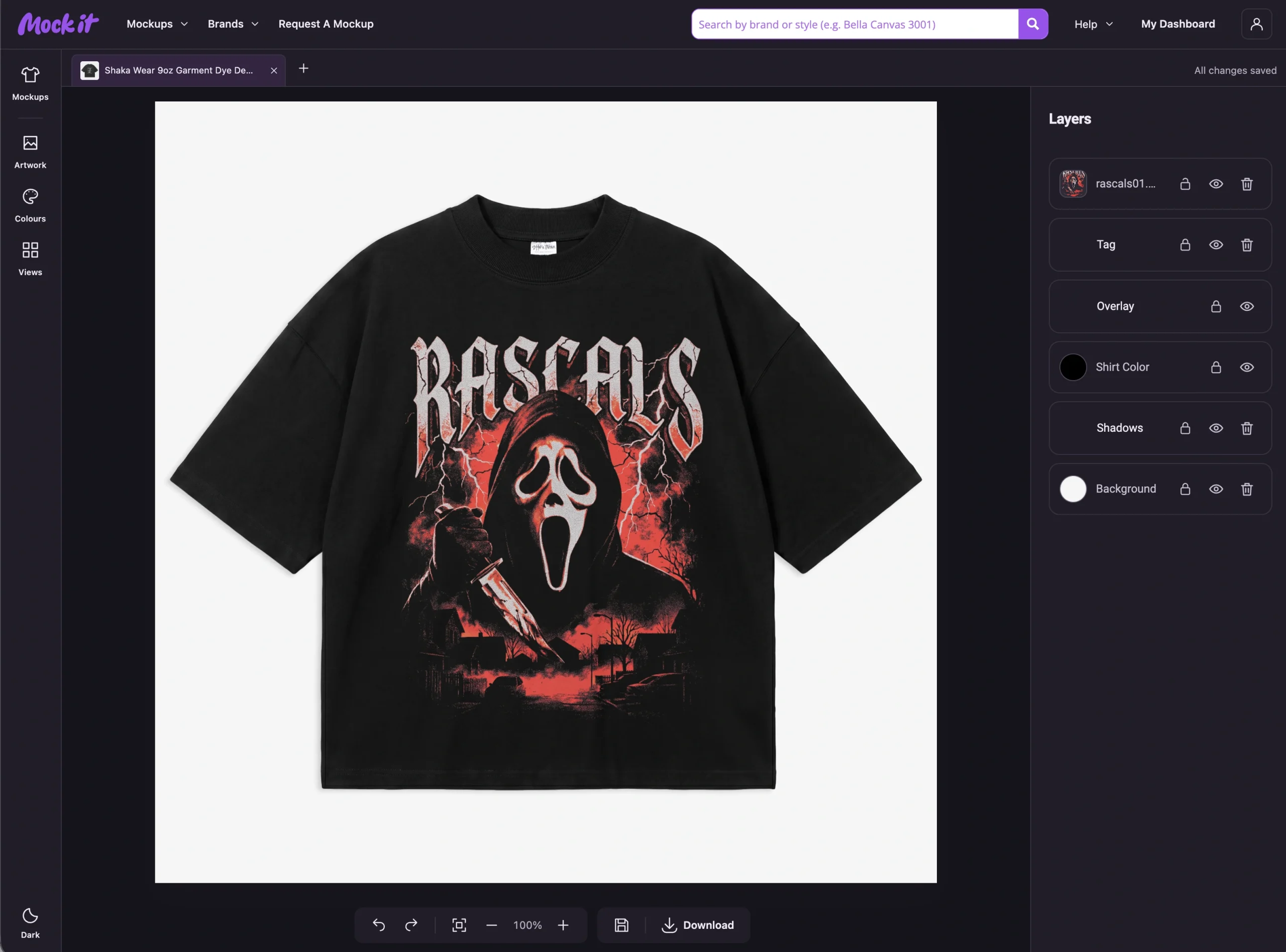
Start With the Right Blank
Open the mockup library and search for the brand or garment you need. Use the filters to narrow things down, then open a mockup to start editing.
If you use the same blanks regularly, favourite them. They’ll be waiting in Favourites on your dashboard the next time you need them.
You can also open another mockup while you’re working. Switch between your workspace tabs to compare the same design on different garments, or keep a few designs going at once.
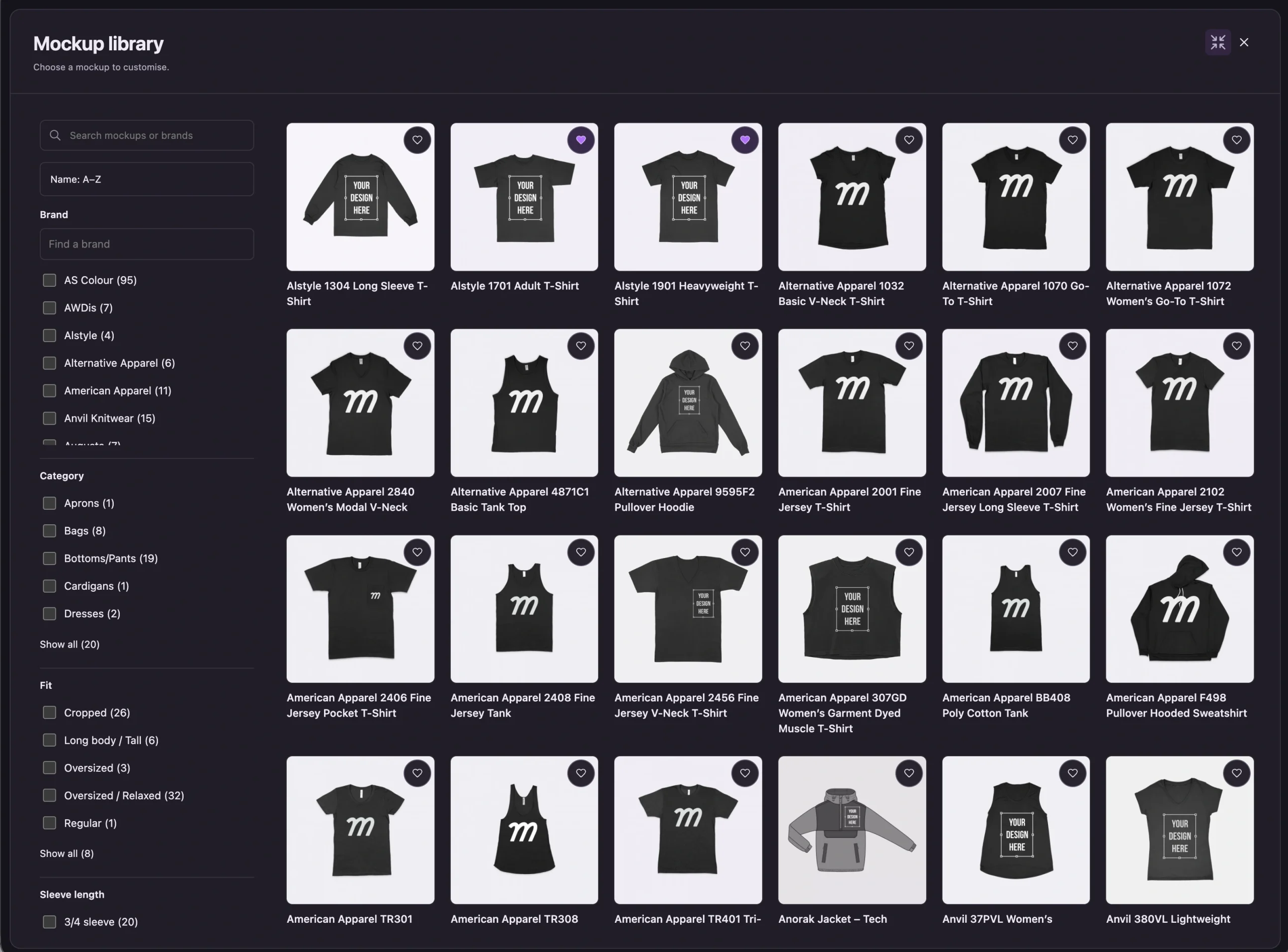
Put Your Design Where You Want It
Open Artwork and upload your design, or choose a file from Your Uploads. Select it on the canvas, drag it into position and use the corner handles to change its size.
That’s the part worth taking a moment over. Try a smaller chest print, move it slightly higher or see what happens when you give it more space. You can make those changes while looking at the mockup.
Open Layers when you need to select an element, hide it or lock it in place. Locking a layer is useful once you’ve got its position right and want to work on something else.
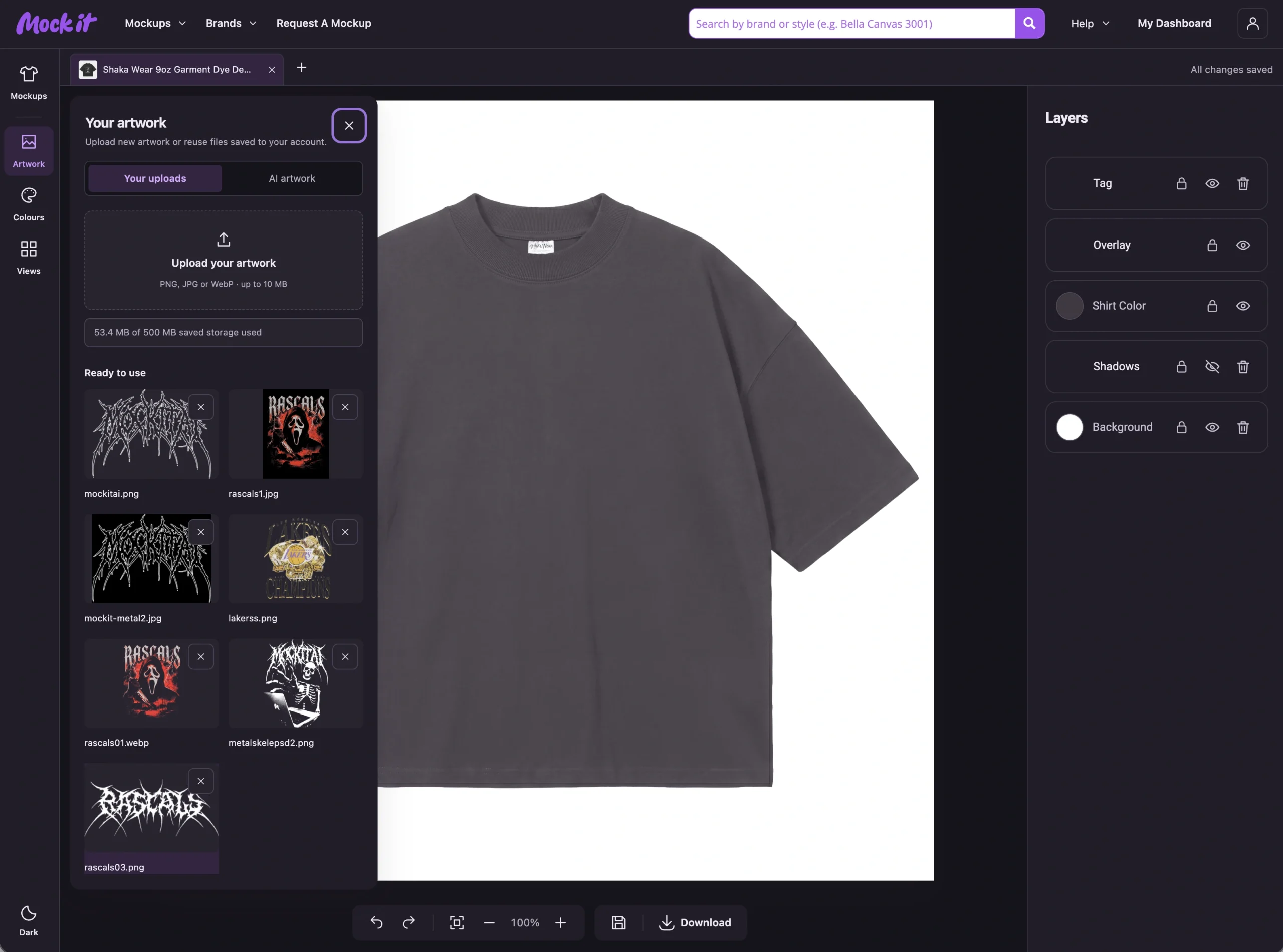
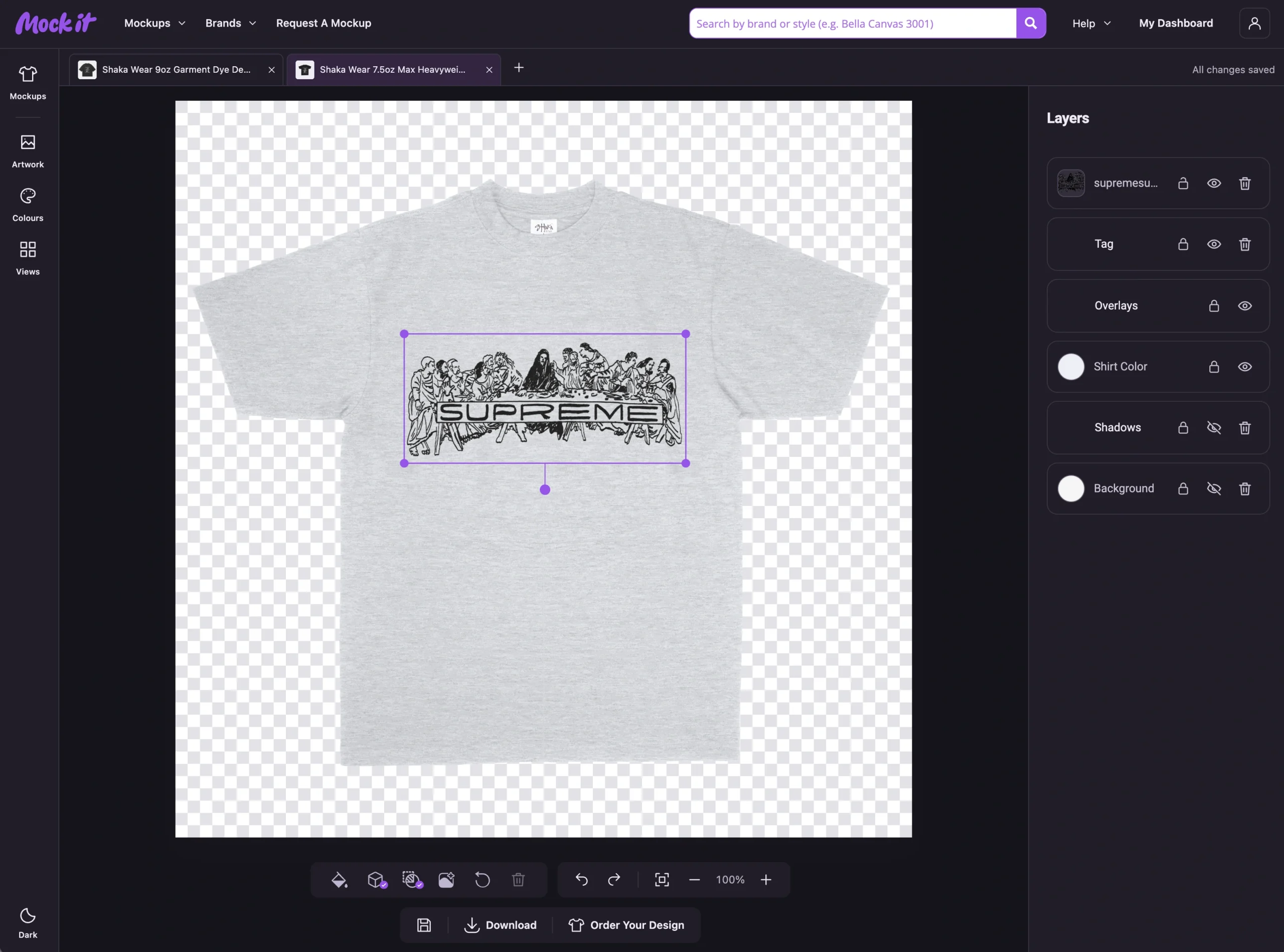
Try the Colours and Views
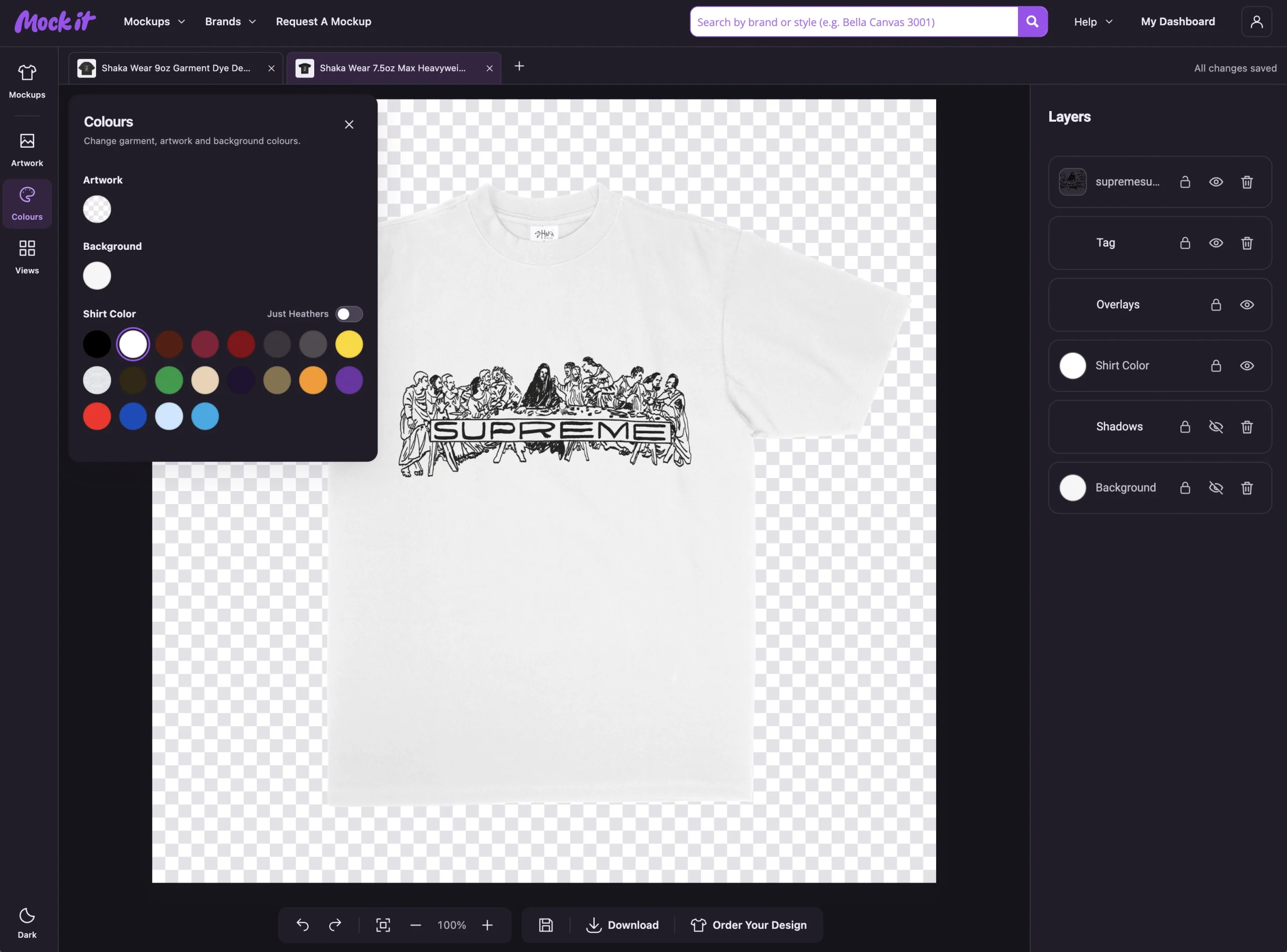
Choose a garment swatch in Colours and see how it works with your design. You can change the background colour too, whether you want a clean product image or something that suits the rest of your launch.
On garments with heather colours, the swatches include their fabric appearance. Turn on Just Heathers to find those options without working through the whole colour selection.
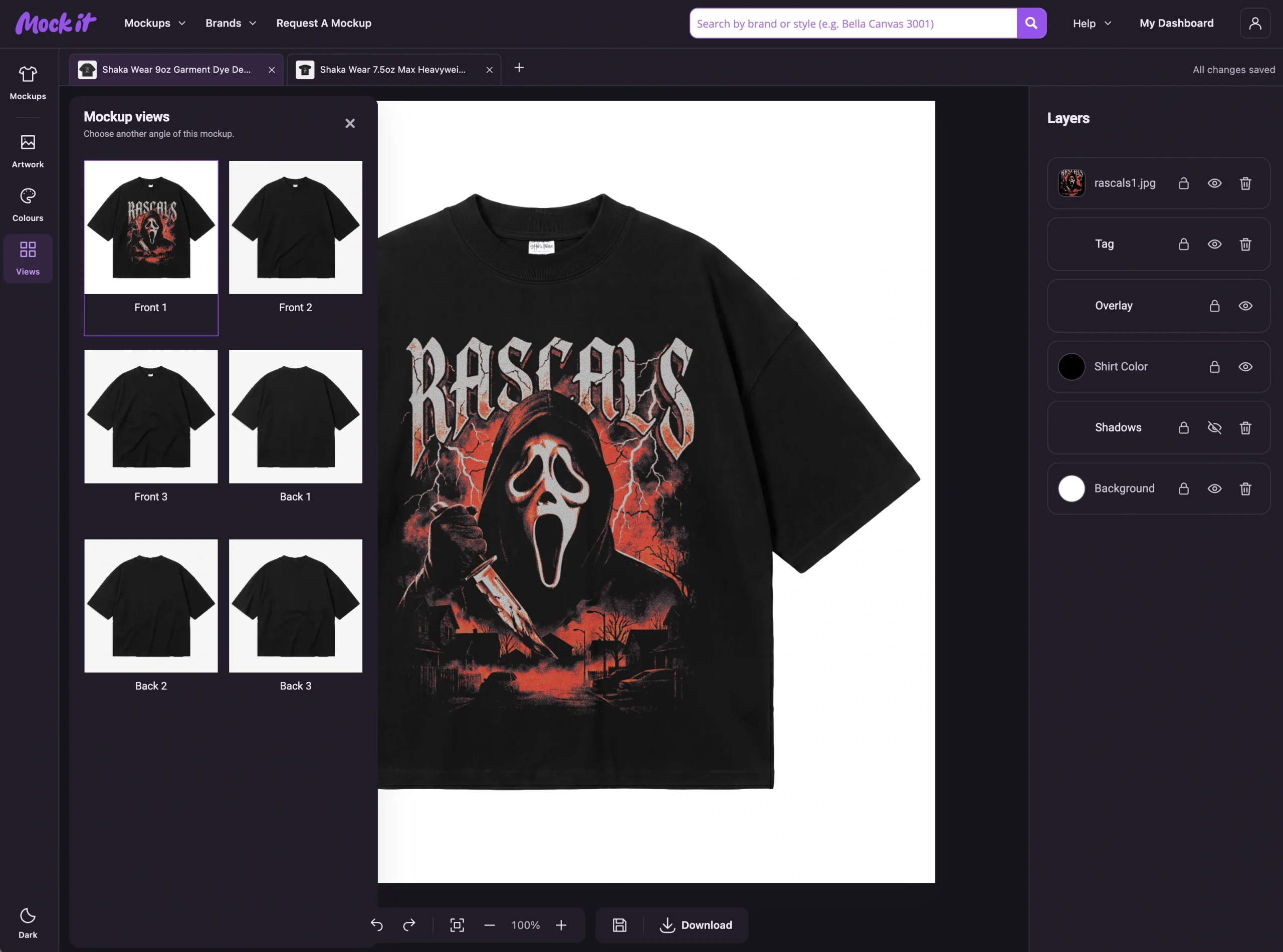
Use Views to check the other angles available for your mockup. Check the artwork on each view you need, then select the view you want to download.
Keep the Versions You Want to Use
When you’re happy with a version, choose Save Mockup. You’ll find it under Saved Mockups in your dashboard.
You can reopen saved mockups from Saved in the workspace’s left toolbar or Saved Mockups on your dashboard. Save again when you want to keep further changes. Unsaved mockups and changes are not automatically restored after you leave.
Your dashboard also brings together your favourites, stored downloads and mockup requests. You can check a request’s progress in My Requests rather than trying to remember when you submitted it.
Download the Image You Need
Choose Download from the toolbar and select PNG or JPG. If you need a transparent background, choose PNG and enable transparency. The download dialog shows the dimensions for the selected view.
After the download, a WebP copy is kept in your dashboard for later access. Your original download uses the format you chose; the stored copy helps keep storage use down.
A Few More Tools to Try
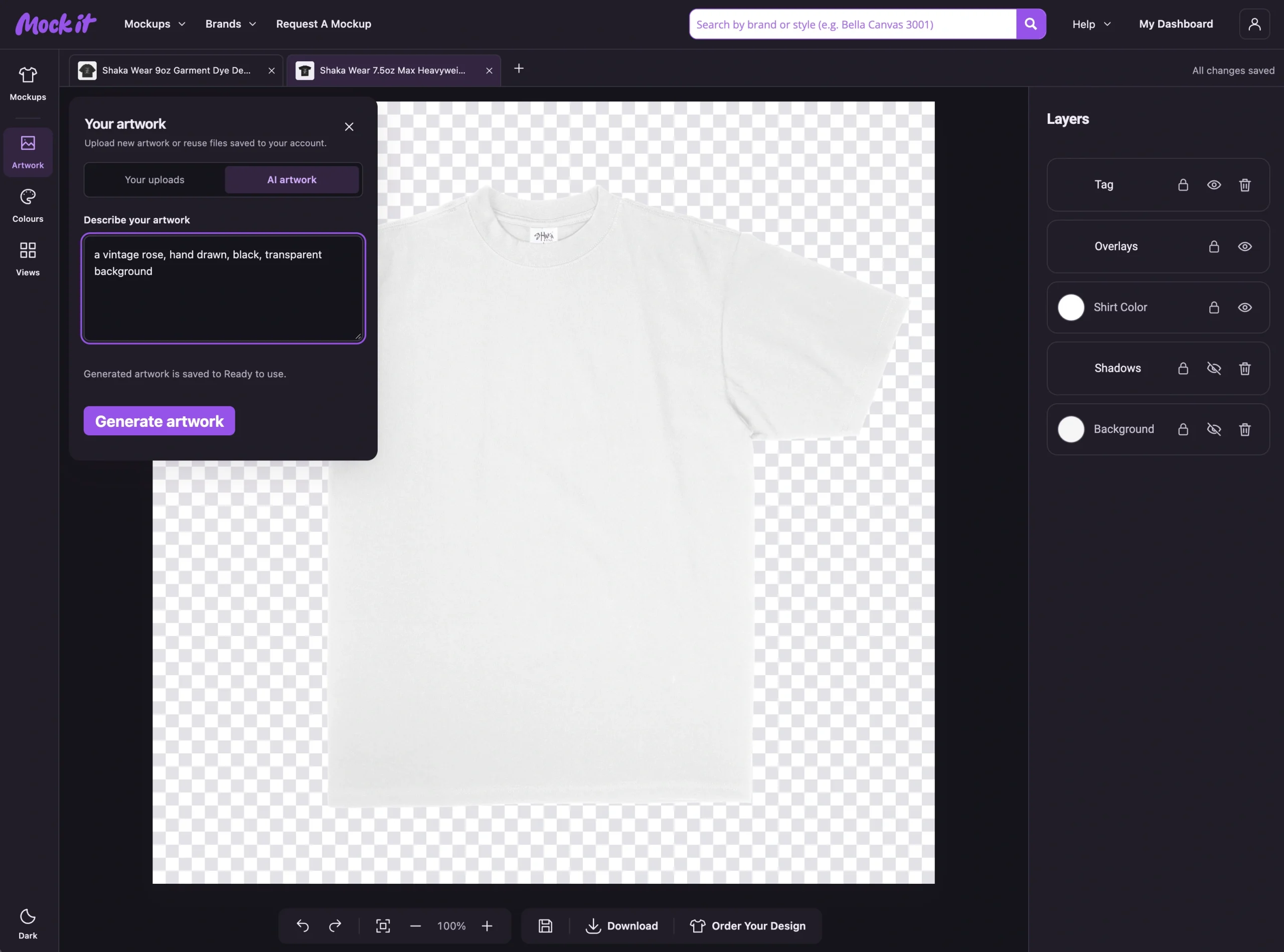
Pro members can remove backgrounds from uploaded artwork and generate artwork with AI. Check the result before using it, especially around fine lettering and edges or when preparing a physical print.
The workspace also has a dark theme and layouts for phones and tablets. On a touch screen, select your artwork first, then drag it or use its resize handles.
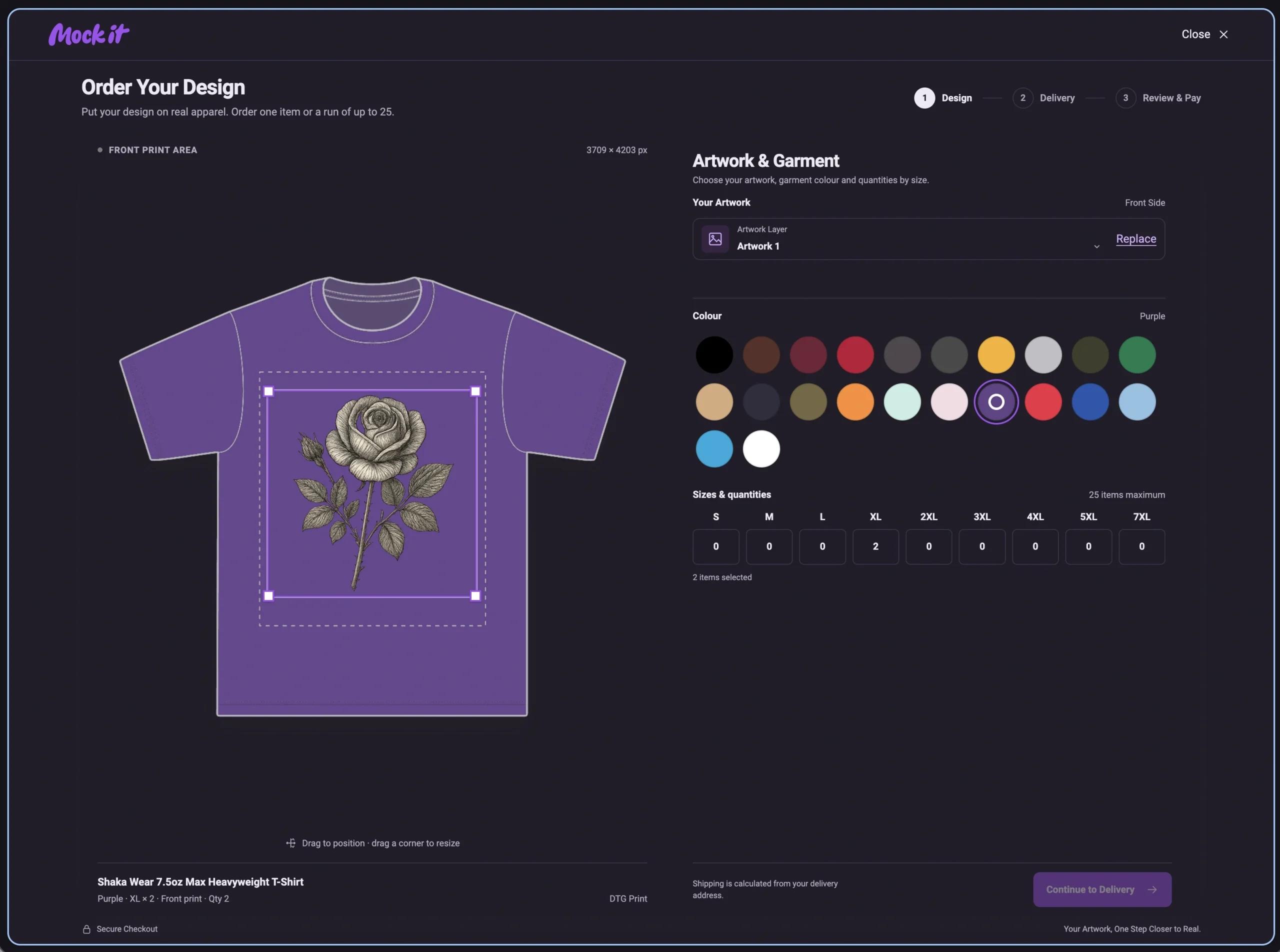
And if you want to take a design off the screen, look for P.O.D in the library. Eligible mockups let you order your design on real apparel. We’ve covered that separately in our guide to Order Your Design.
Give It a Run With One of Your Designs
Pick a blank you use often and bring in a design you already know. Try a couple of colours, save your favourite version and download it. That’s a good way to get familiar with where everything lives.

 Trusted By Thousands Of Designers
  Cancel Your Subscription Anytime
  30 Day Money Back Guarantee