
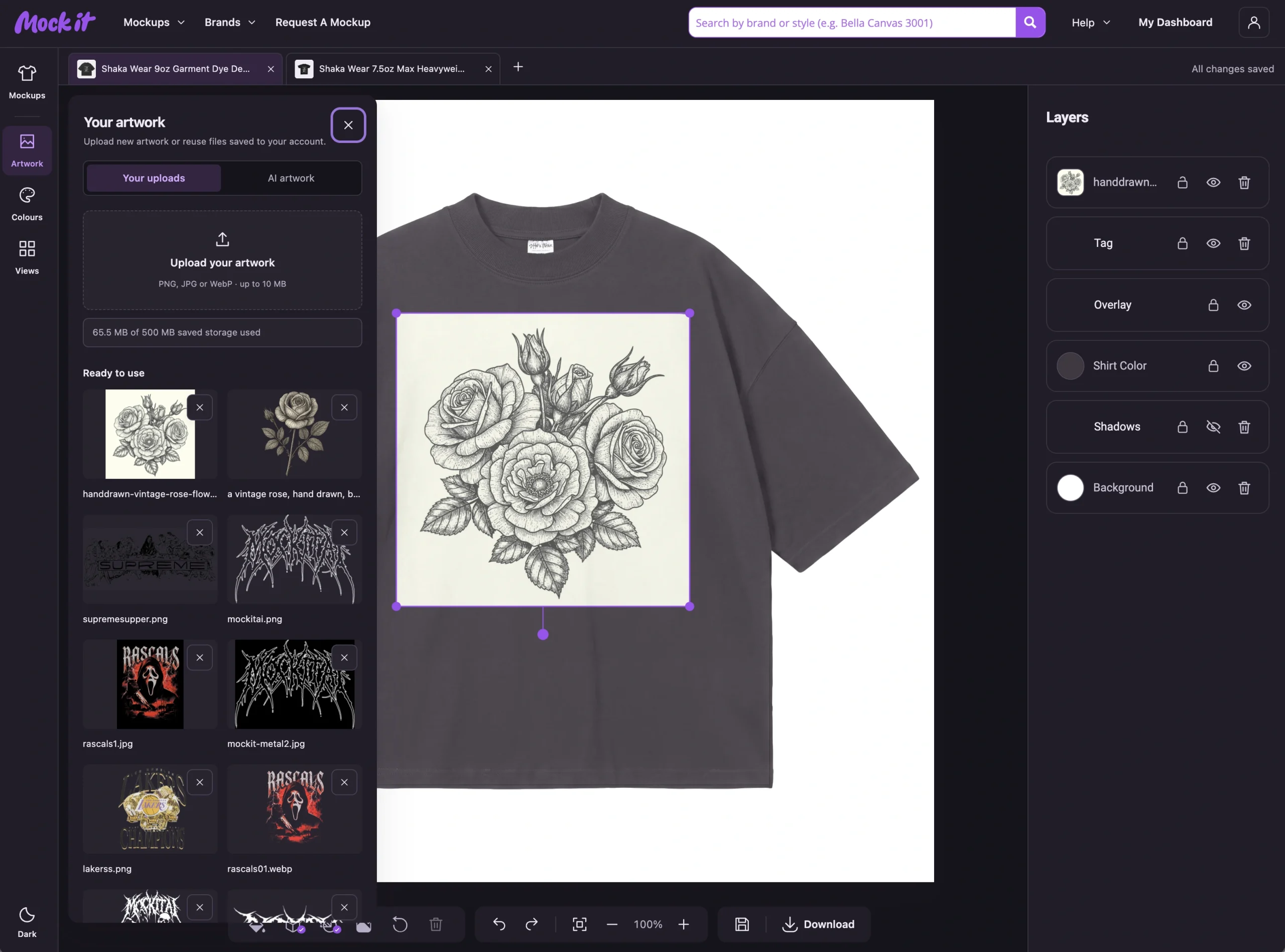
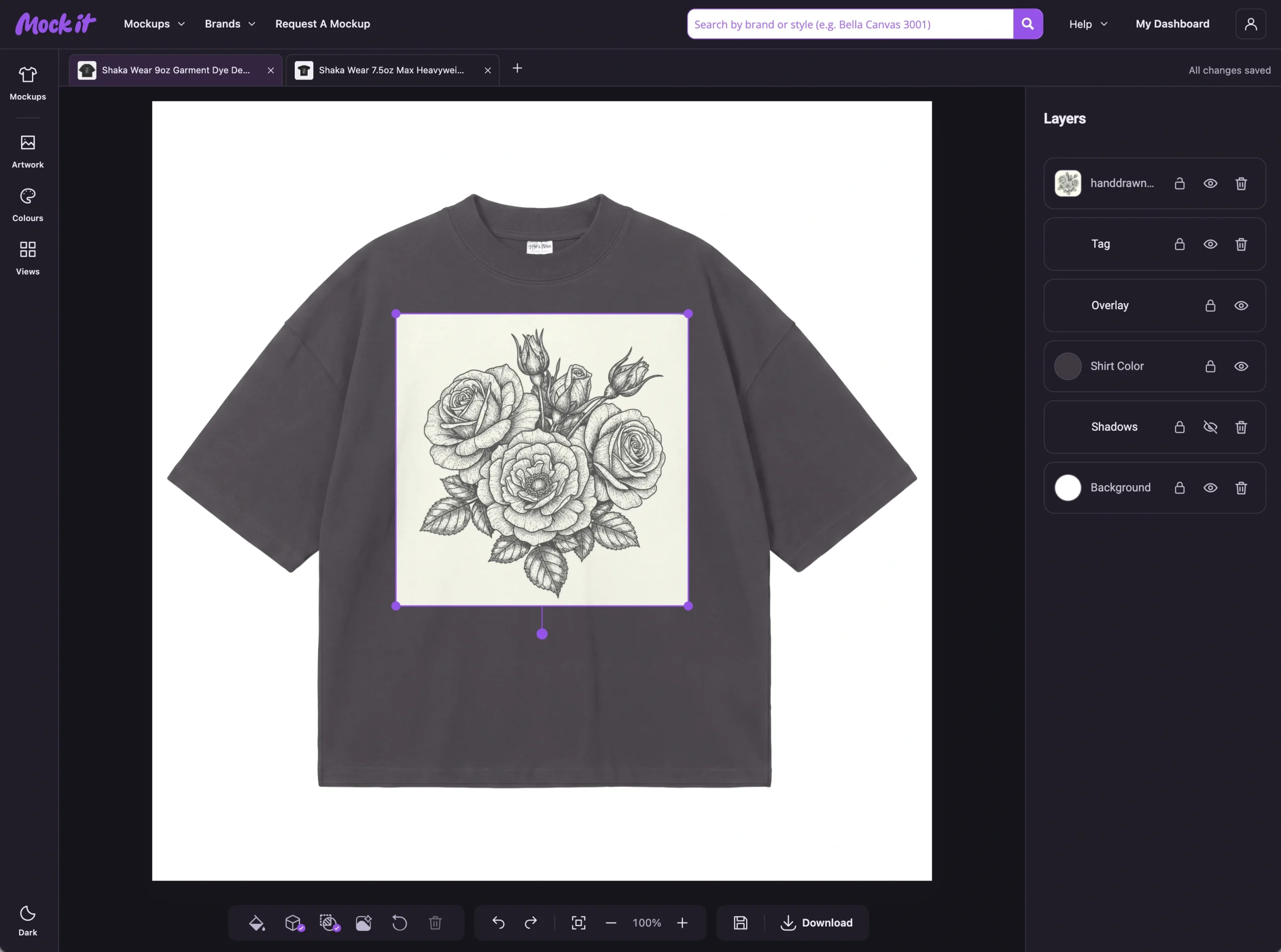
You add a design to a shirt and there it is: a white rectangle around the artwork. It covers the garment colour and makes it harder to judge how the design should look.
The background-removal tool lets Pro members remove that background from uploaded artwork while working on a mockup. You can check the result on the garment, adjust its placement and keep working.
Here’s how to use it—and what to look for before you call the design finished.
Start With Your Original Artwork
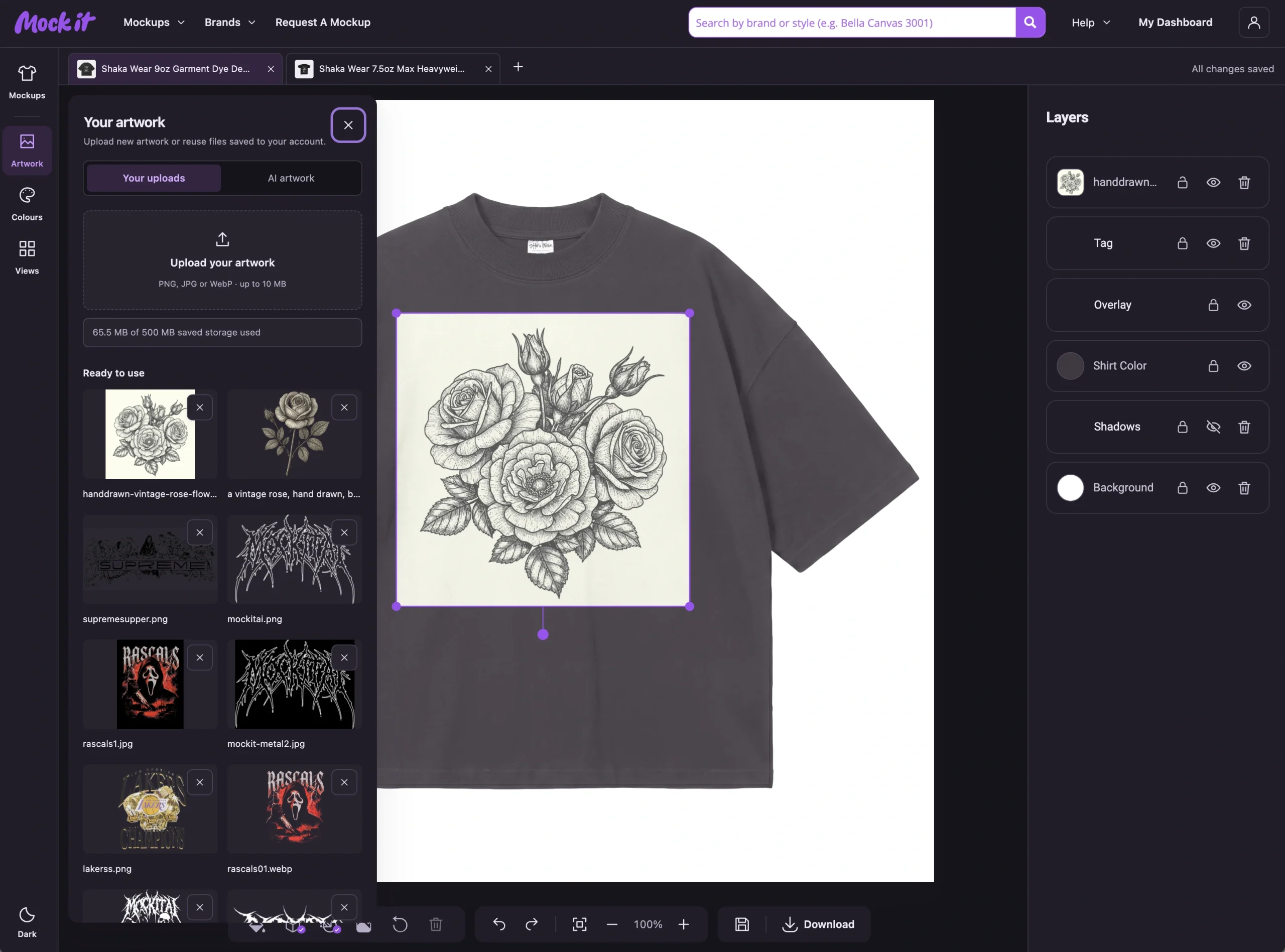
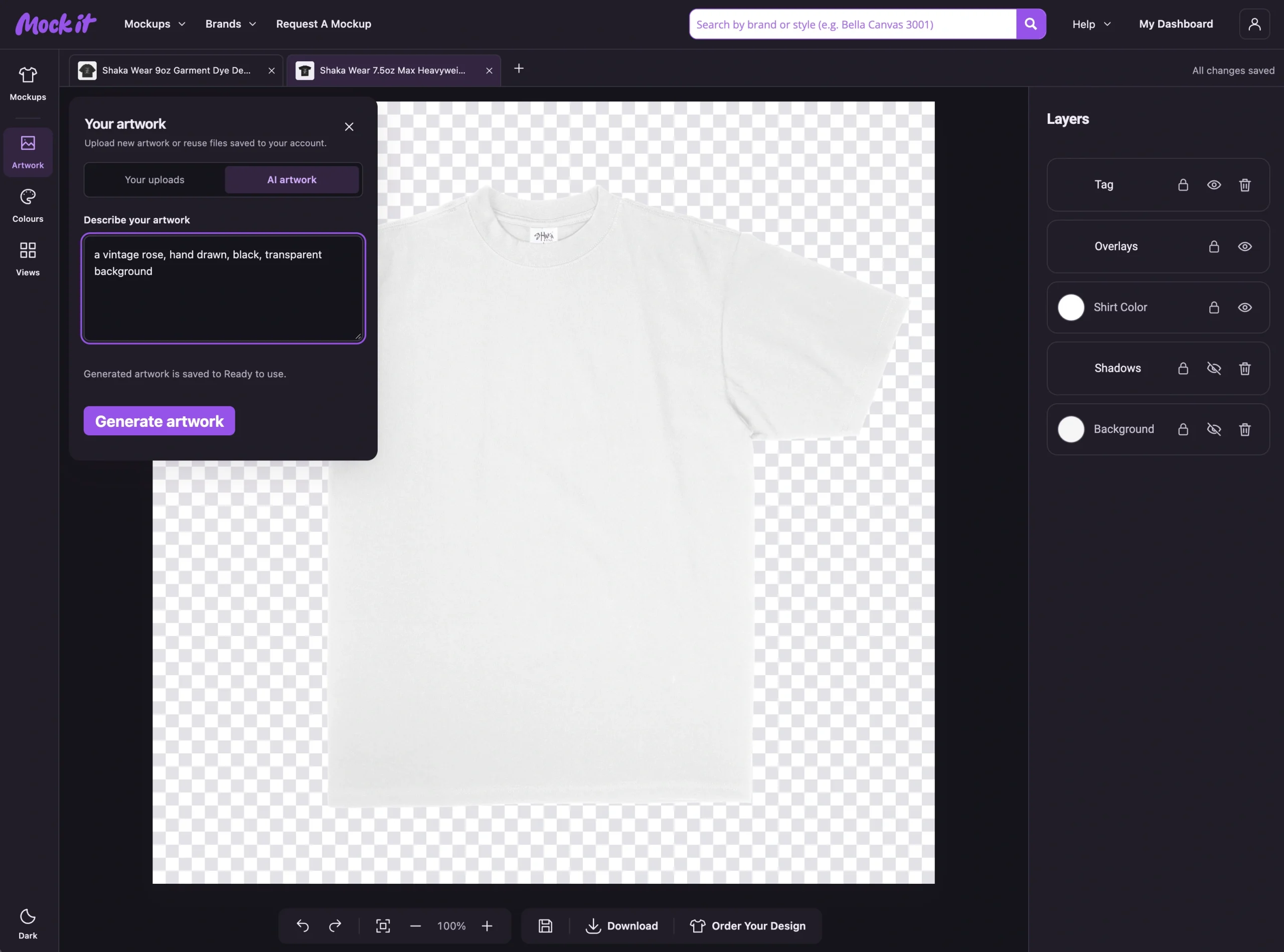
Open your mockup, choose Artwork and add a file from Your Uploads, or upload a new image. The workspace accepts PNG, JPG and WebP files up to 10 MB and 40 million pixels.
Use the clearest original you have. A small screenshot or a heavily compressed image gives the tool less detail to work with, especially around lettering and thin lines.
If your file already has a clean transparent background, you may not need to remove anything. Place it on a coloured garment and check whether a solid rectangle is actually present.
Select the Artwork, Then Remove the Background
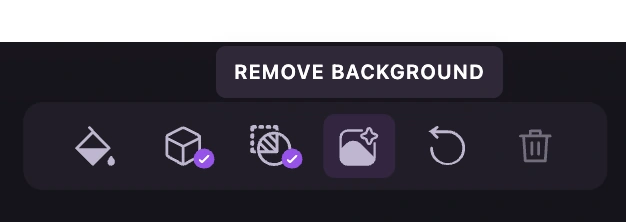
Select the artwork on the canvas, or choose its layer in Layers. The selected-item tools include Remove Background.
Choose it and wait for the processing message to finish. Keep the workspace open while it works, and avoid starting the same request repeatedly.
The tool works on the artwork image. It is separate from changing the mockup’s canvas background or downloading a transparent PNG of the whole mockup.
Check What Stayed and What Disappeared
A good result removes the surrounding background and keeps the parts of the design you need. That sounds simple, but artwork can be difficult to separate when its colours blend into the background.
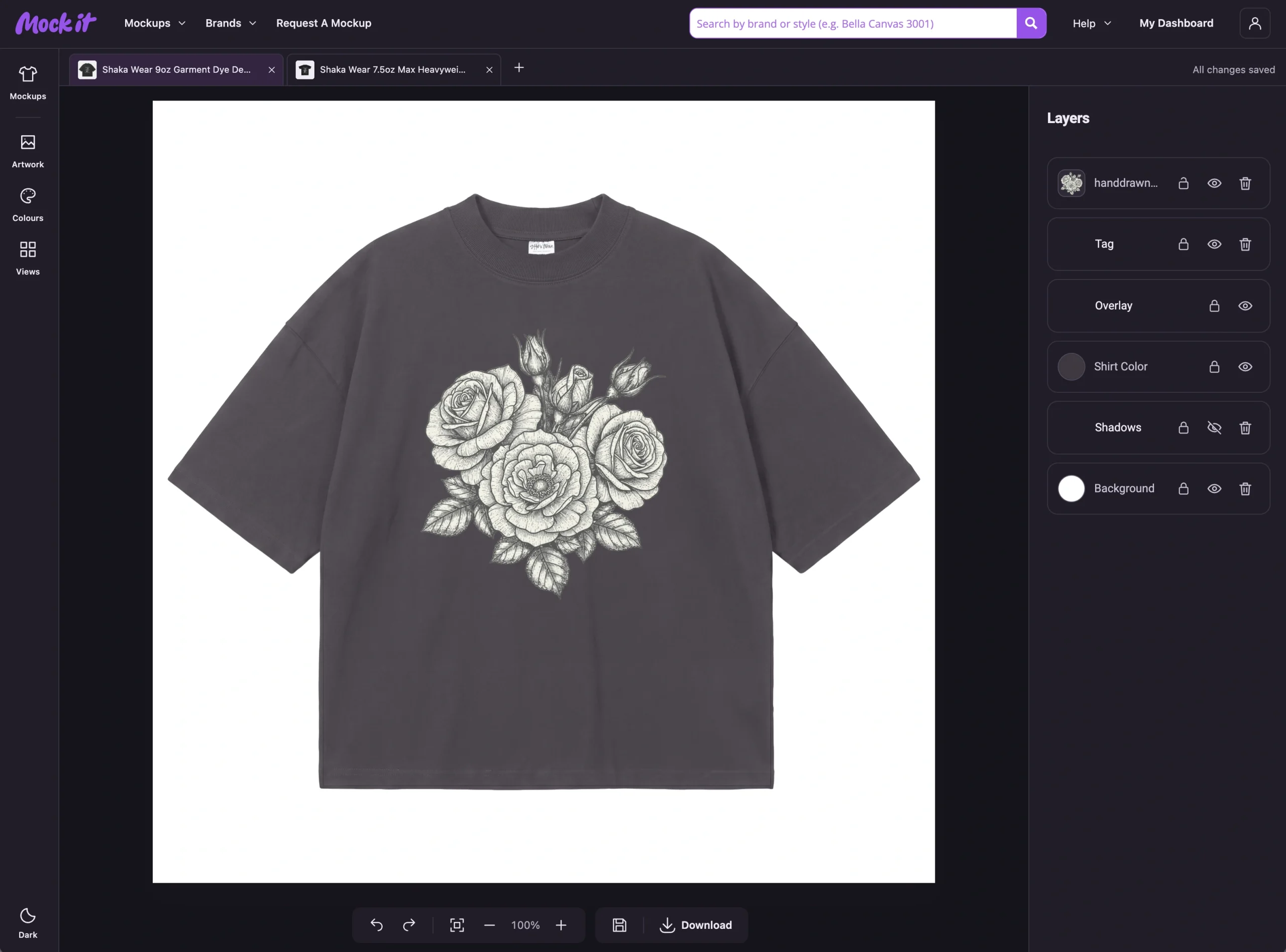
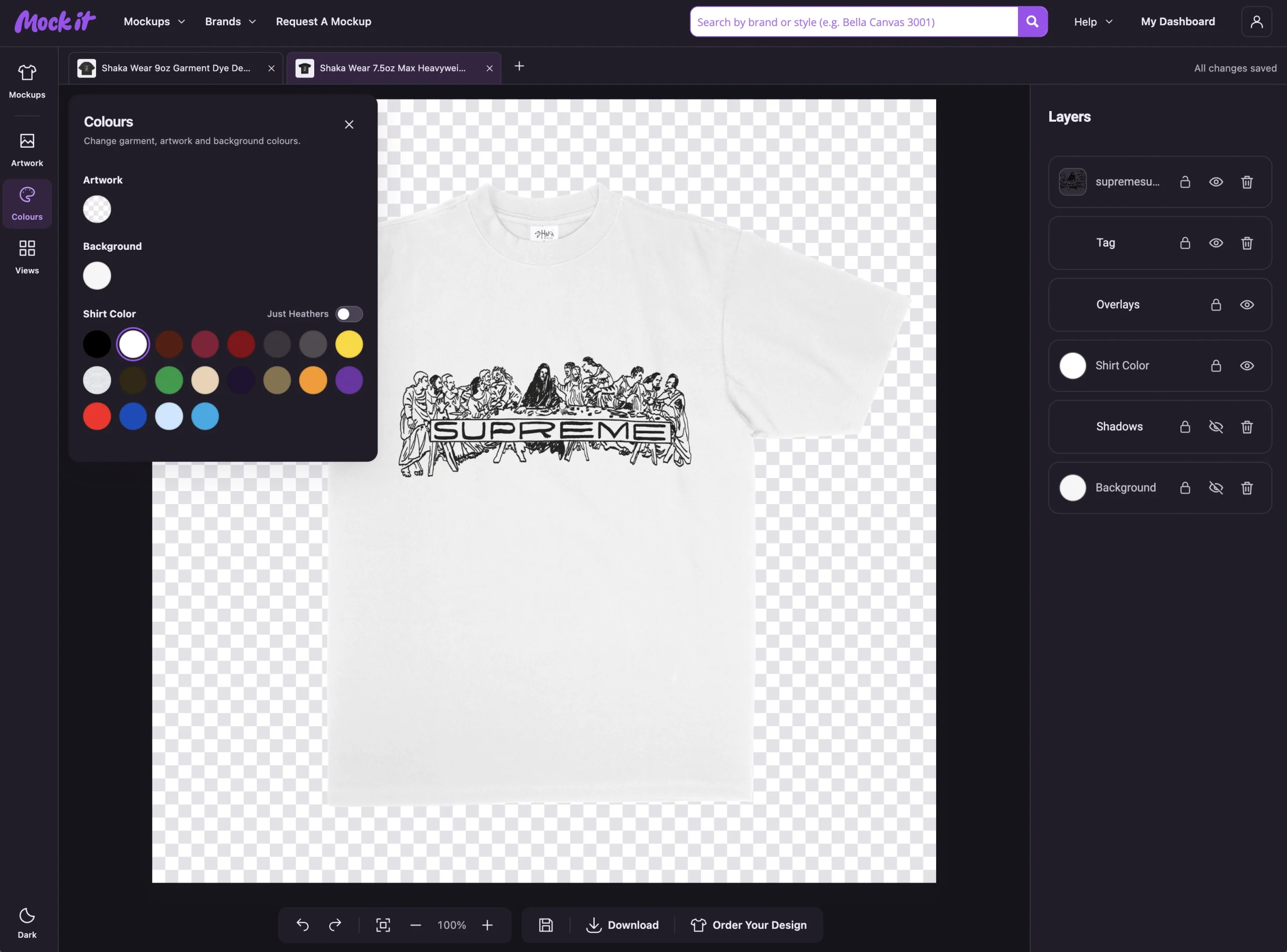
Look closely at the outer edges, the spaces inside letters and any fine details. Light lettering on a white background or dark shapes on black can be particularly easy to misread.
Compare the result with your original. If a part of the design is missing, don’t accept it just because the rectangle is gone. Your original upload remains available to add again.
Try It Against More Than One Colour
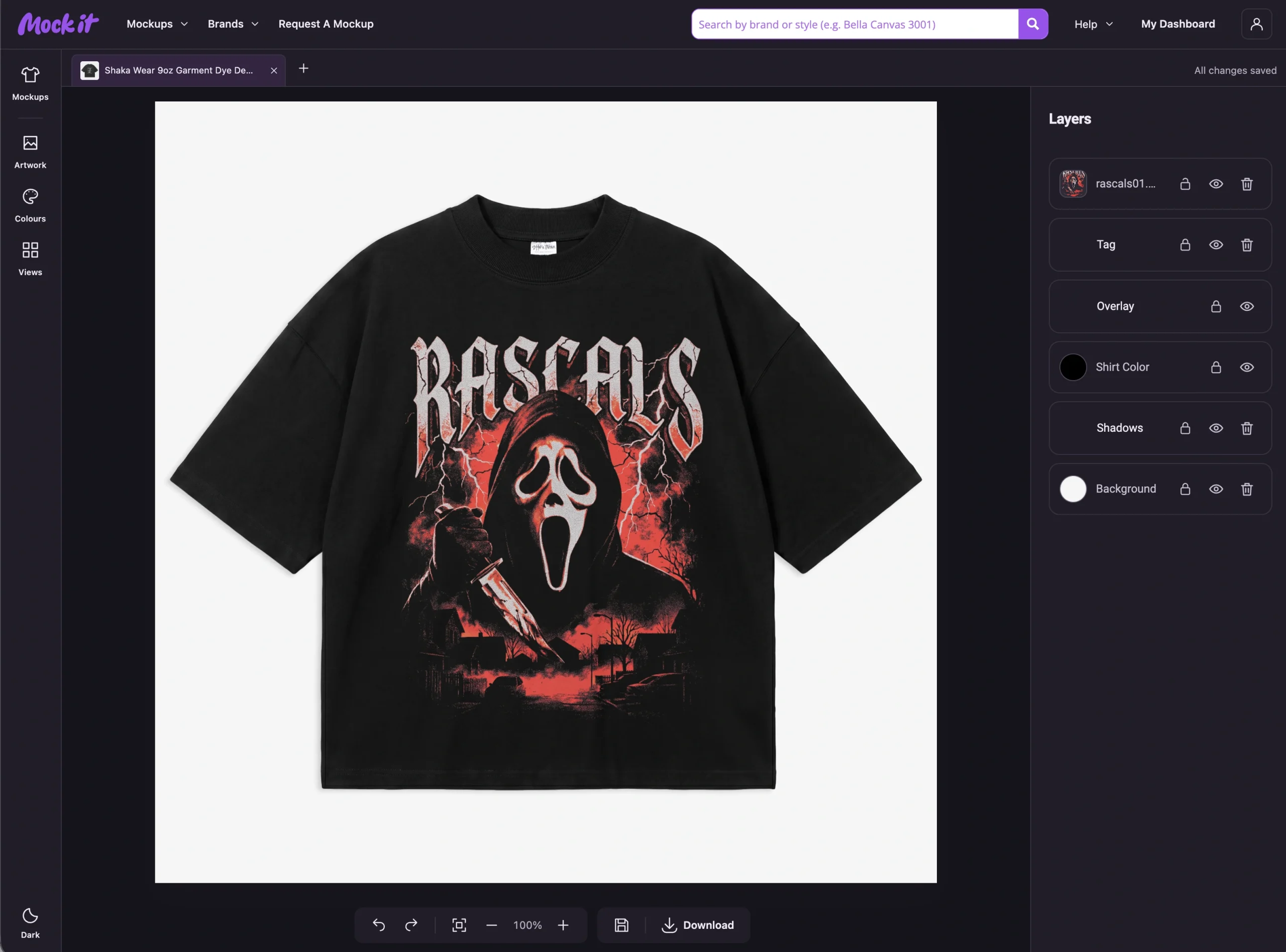
Change the garment colour and inspect the edges again. A pale halo that disappears on a white shirt can become obvious on a black one.
Check the design at the size you plan to use. A result that looks fine as a small thumbnail may show rough edges when enlarged.
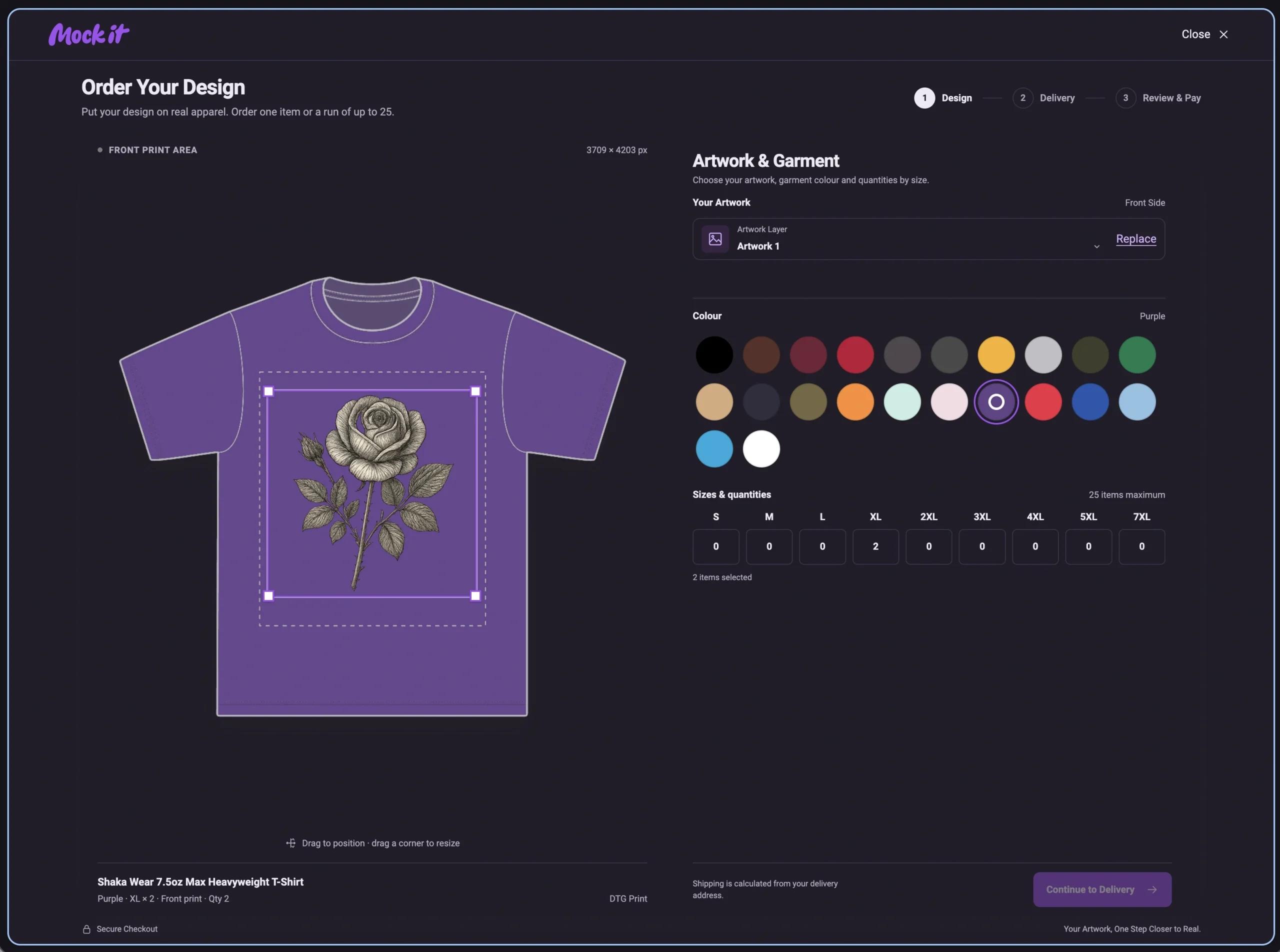
For a physical order, also check the artwork in the print-area preview. Background removal does not improve the original image’s resolution or guarantee a print-ready file.
Know When to Use Another File
If the tool removes important details, return to the original and use a cleaner source if you have one. A transparent export from the program where you made the design is often the best starting point.
If processing fails, note the error and retry once. If the same file keeps failing, contact support with its format, size and the message shown. If you reach a daily allowance, follow the limit message rather than repeatedly submitting the image.
Save the Version You Want to Keep
Once you’ve checked the result, adjust its size and placement, then choose Save Mockup. You can reopen that version from Saved Mockups on your dashboard.
Try it with one of your own uploads and compare the result on a light and dark garment. Keep the version that preserves the design you intended.
For the step-by-step instructions, see Remove an Artwork Background.

 Trusted By Thousands Of Designers
  Cancel Your Subscription Anytime
  30 Day Money Back Guarantee