
You’ve got a shirt ready for the launch, a hoodie you’re still trying colours on and another design you want to come back to. The next job is keeping track of which is which.
The new workspace lets you keep several mockups open while you work. Your dashboard brings together the mockups you explicitly saved, favourite blanks and stored downloads.
Save each mockup you want to reopen later. Open tabs and unsaved changes are not automatically restored when you return.
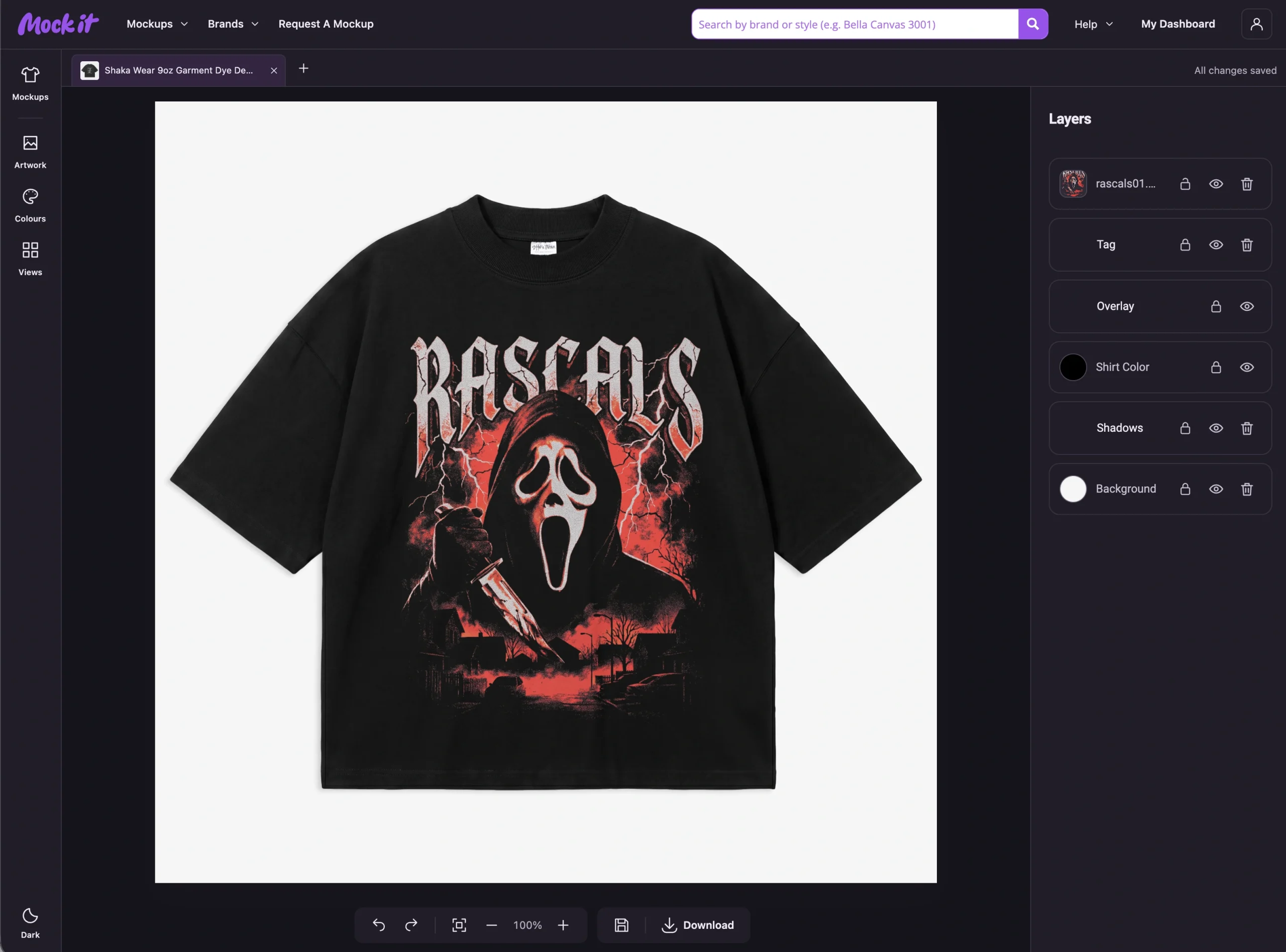
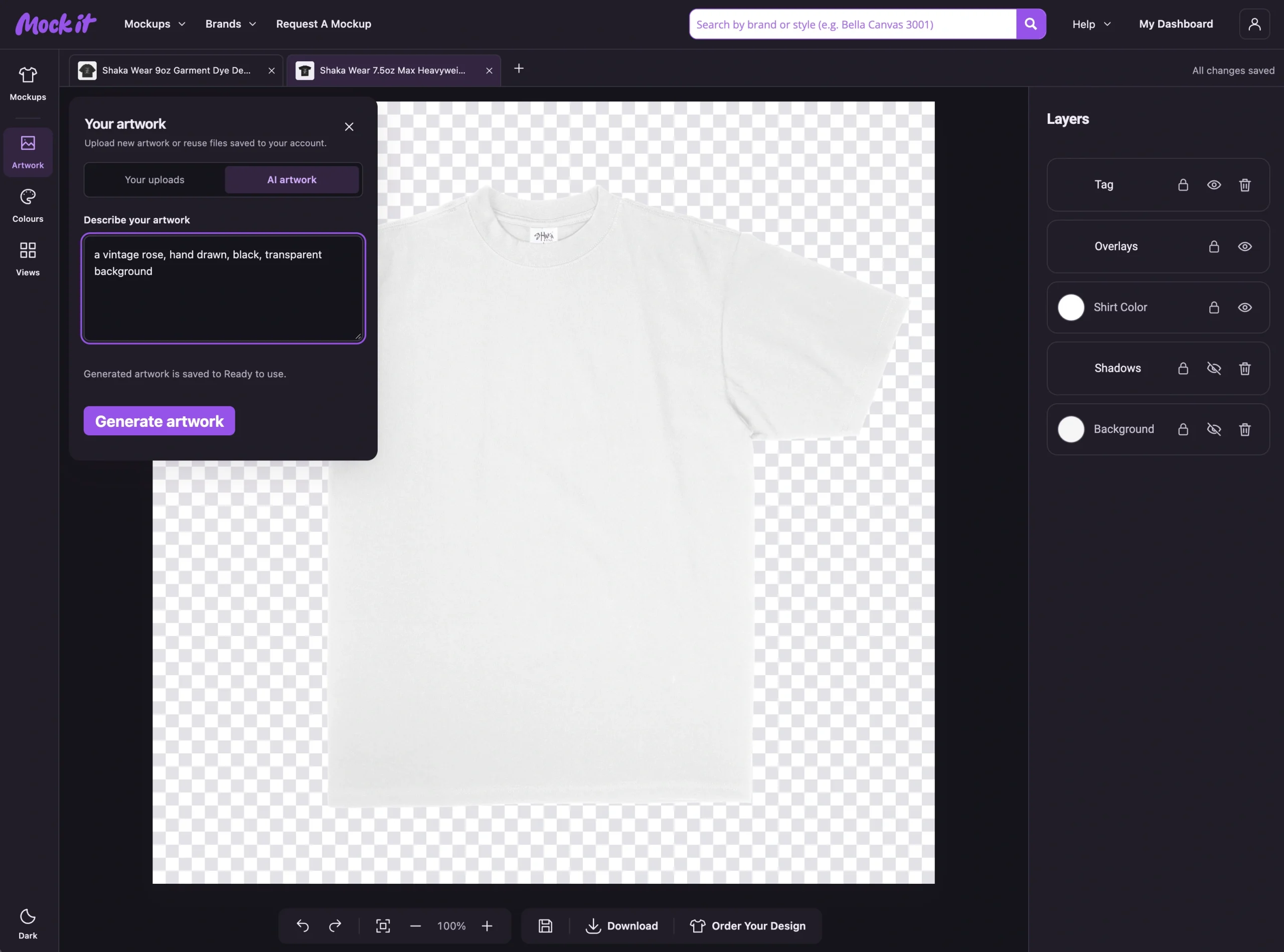
Keep a Few Mockups Open
Open a mockup, then use the library to choose another. Use the workspace tabs to switch between them.
You might keep a shirt and hoodie open to compare a design, or work on two different ideas. Before making an edit, check the selected mockup and view so you’re changing the right one.
Each mockup tab holds its own work. Having several tabs open doesn’t mean every mockup shares the same design or placement.
Save Before You Leave
If you close a mockup tab or follow a link away with unsaved changes, you can save, keep editing or leave without saving. Choose Save & close or Save & leave to keep your changes.
Closing the browser tab or window may show the browser’s leave-site warning. That warning cannot save your mockups for you, so save the work you want to keep before closing the browser.
Save Mockup Keeps an Explicit Version
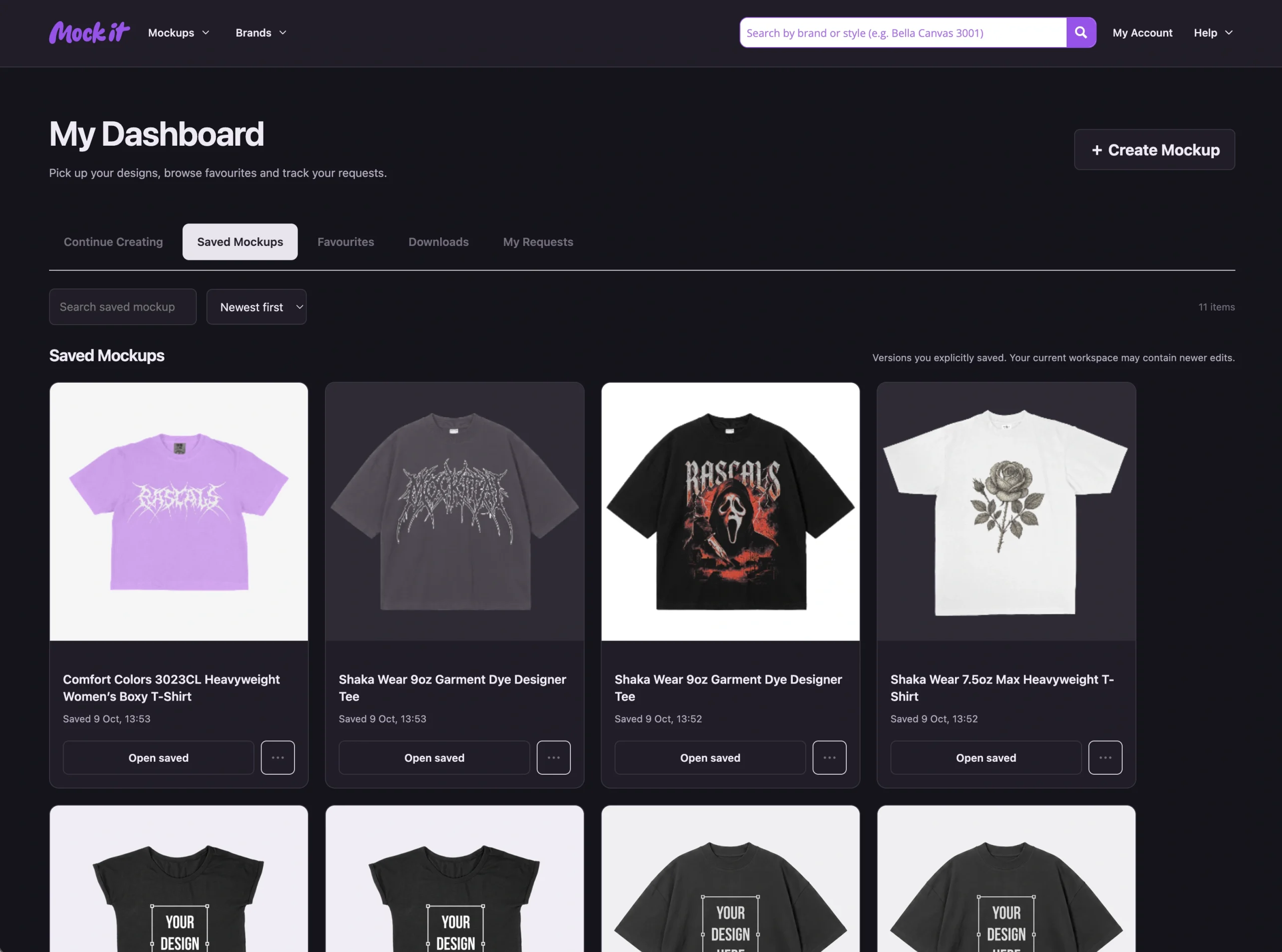
When you have a version you want to keep, choose Save Mockup. Open it again from Saved in the workspace’s left toolbar or Saved Mockups on your dashboard. Save again after further changes you want to keep.
For example, save the black-shirt version when its placement is right. If you then try another colour or size in the current workspace, check Saved Mockups when you want to return to the version you saved.
Read the confirmation when opening saved work. If that mockup is already open, loading the saved version can replace what you’re currently editing. Save any changes you want to keep before continuing.
Favourites Bookmark the Blanks You Use
A favourite is a mockup template you’ve bookmarked. It helps you find the shirt, hoodie or other blank you use regularly without searching the whole library again.
It isn’t a saved copy of your design. Use Favourites to start with a familiar blank; use Saved Mockups to return to artwork and placement you explicitly saved.
Downloads Holds Your Exported Images
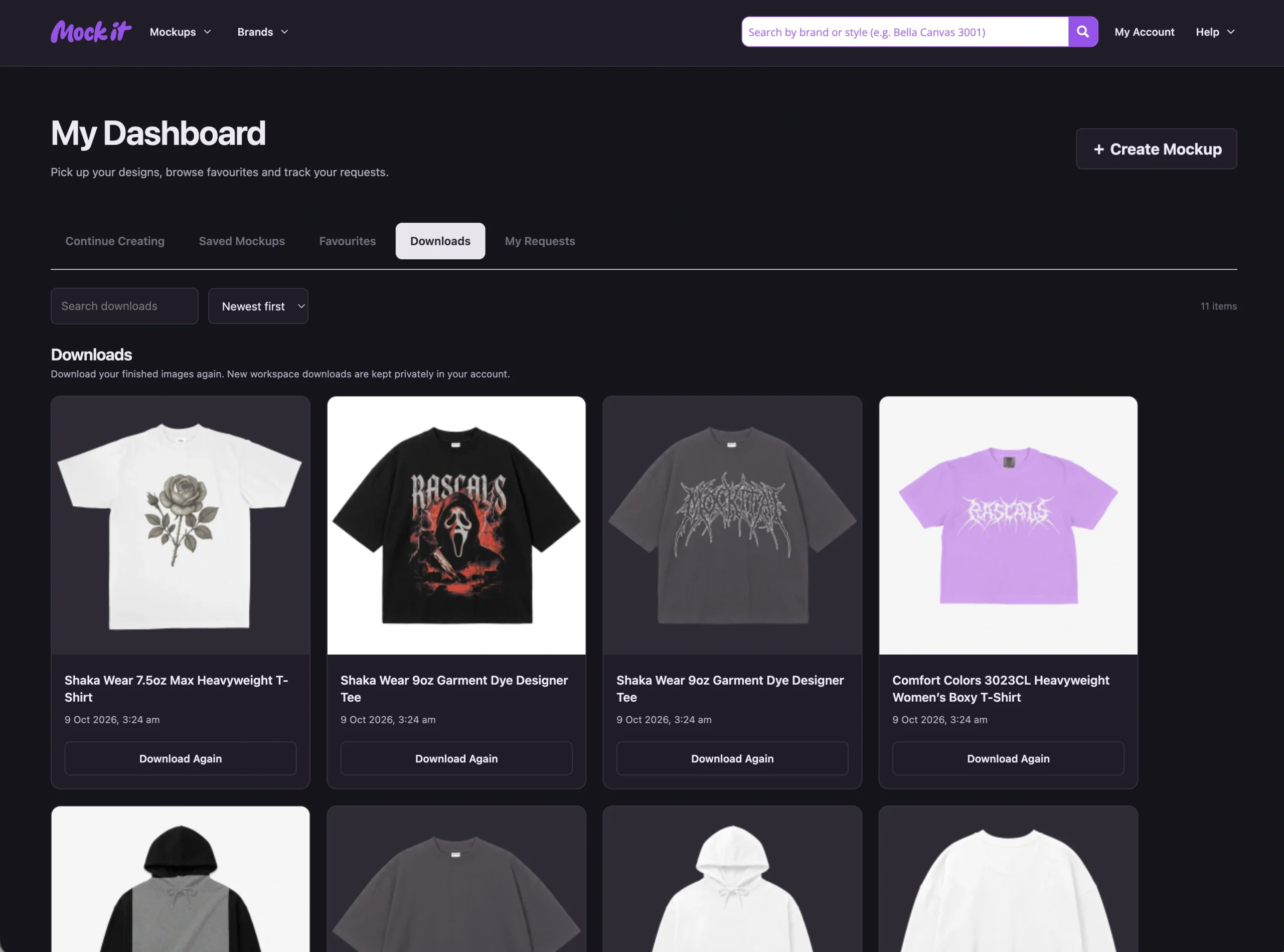
Downloads gives you access to stored copies of the mockup images you’ve exported. Use Download Again when you need one of those files.
The original download uses the PNG or JPG format you selected. New workspace downloads also keep a separate WebP copy in your dashboard to reduce storage use.
That stored image is different from an editable mockup. Open the workspace or saved version when you want to change the design, and use Downloads when you need the exported image again.
Find Your Work and Clean Up Carefully
Use Search this tab to find an item in the selected dashboard tab. The sorting control lets you choose a useful order for the results.
My Requests has its own tab too, so you can check the progress of a mockup you requested.
If you’re clearing out old work, read the delete confirmation. Deleting a saved mockup, a favourite or a stored download affects different things. Keep copies of important images and original artwork before removing anything you may need later.
Make the Next Session Easy to Start
Save the mockups you want to keep and check them in Saved Mockups before leaving. Favourite the blanks you use often.
Next time you open Mock It, reopen a saved mockup to keep editing, choose a favourite blank to start something new or download an exported image again.
For the dashboard instructions, see Use Your Dashboard.

 Trusted By Thousands Of Designers
  Cancel Your Subscription Anytime
  30 Day Money Back Guarantee