Sometimes you know the kind of design you want to try, but you haven’t made the artwork yet. A vintage rose illustration. A bold floral graphic. Something with a few colours and a strong shape that will read well on a shirt.
Pro members can generate artwork from a text prompt inside the Mock It workspace, then place a result on a garment and see how it works.
The useful part is being able to judge the image in context. You can try its size, position and contrast against the shirt before deciding whether to keep developing it.
Open AI Artwork
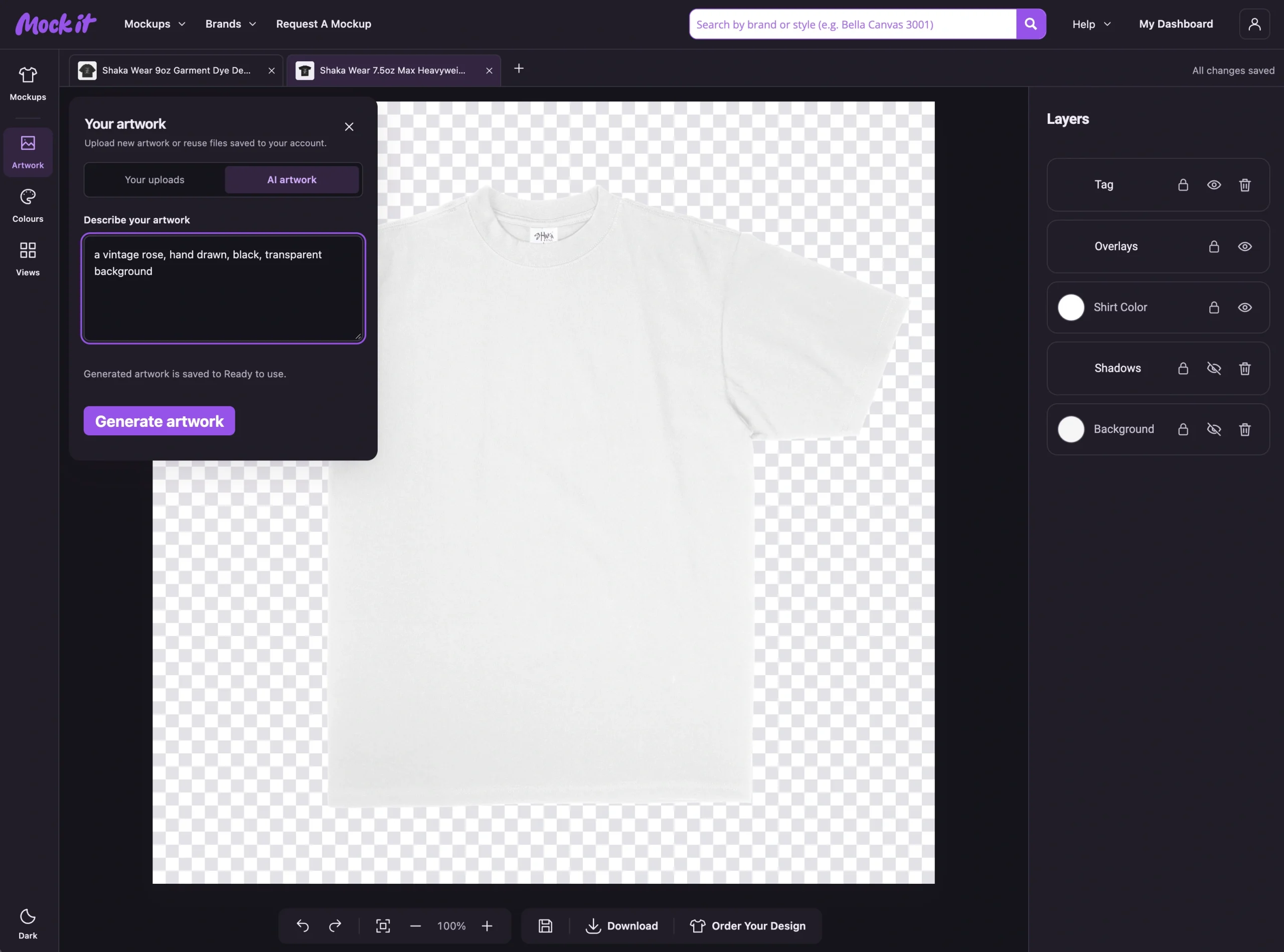
Choose Artwork in the workspace and switch to AI artwork. Enter a description, then choose Generate artwork.
When generation finishes, the artwork is saved to Ready to use in your uploads. Choose an image to add it to the mockup.
If the feature isn’t available, check your membership access and the message shown. Keep the panel open while a request is processing rather than starting several identical requests.
Describe a Design You Can Actually Judge
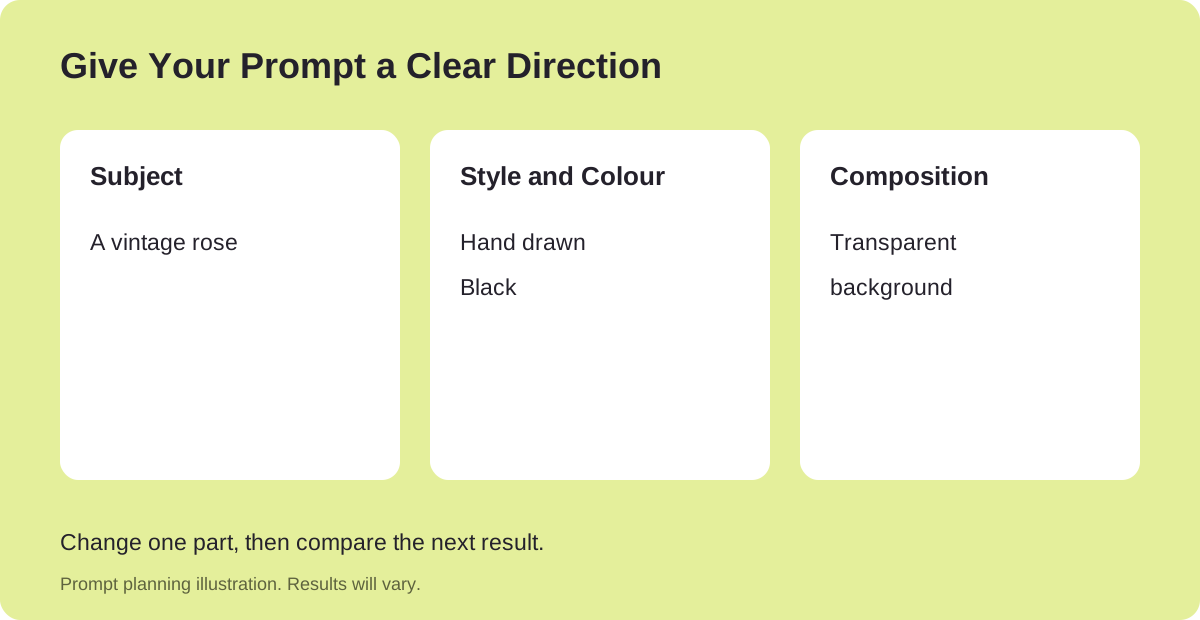
Start with the subject, then add the style, colours and composition. Think about what you want the graphic to do on the shirt.
Here’s a prompt to try:
a vintage rose, hand drawn, black, transparent background
The rose gives the image a subject. “Hand drawn” describes the style, while “black” gives it a colour direction.
A prompt describes what you want; it does not guarantee the result. Asking for a transparent background also does not guarantee a transparent image.
Change One Part of the Prompt
If the first result has the right subject but feels too busy, simplify the description. If the shape works but the style doesn’t, change the style rather than adding more instructions to everything else.
For the rose example, you could try “simple woodcut illustration” in place of “hand drawn”. Compare the results and decide which direction suits your design.
Treat these as options to review. You don’t need to keep an image just because it was generated successfully.
Put the Result on a Garment
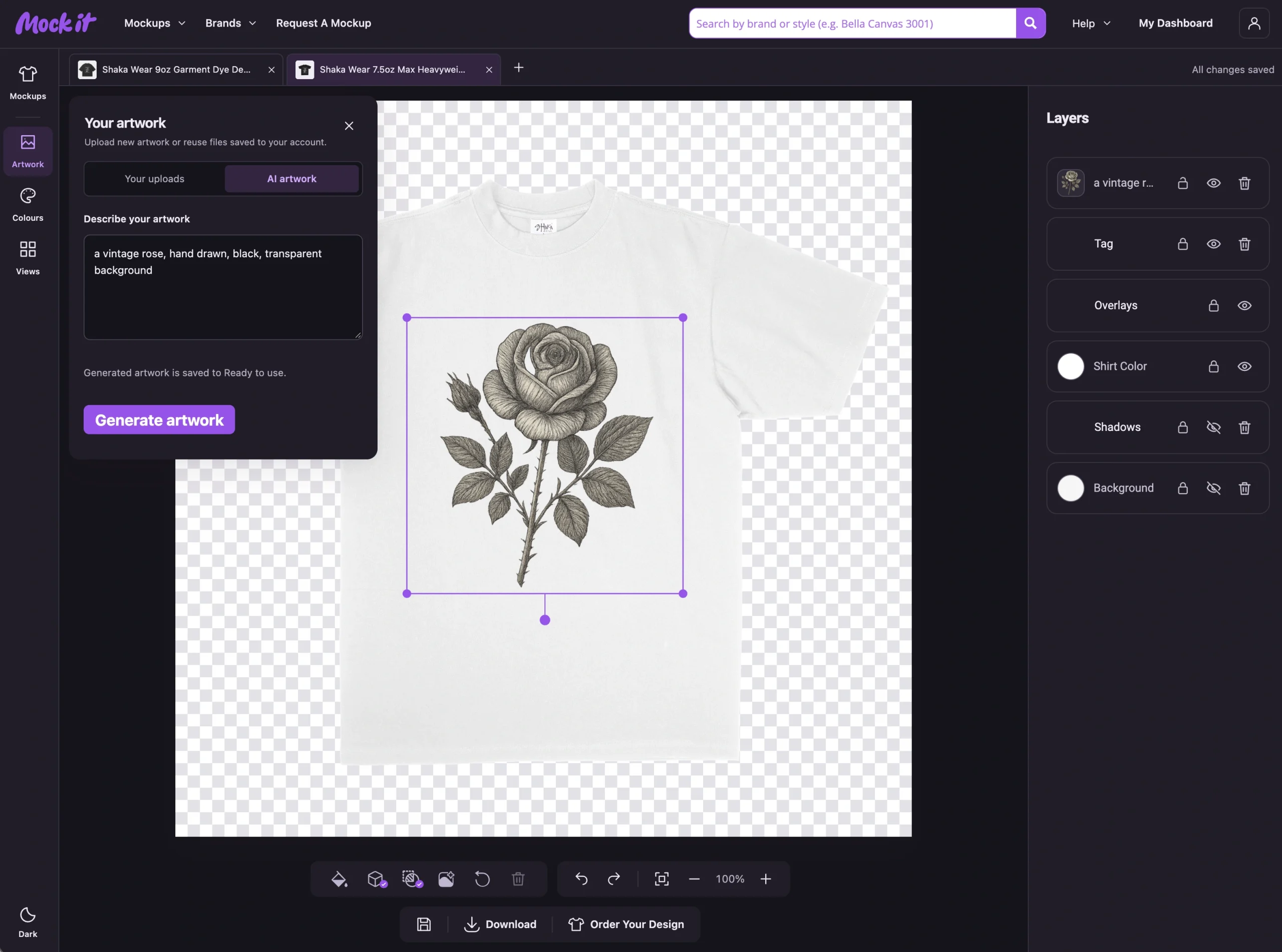
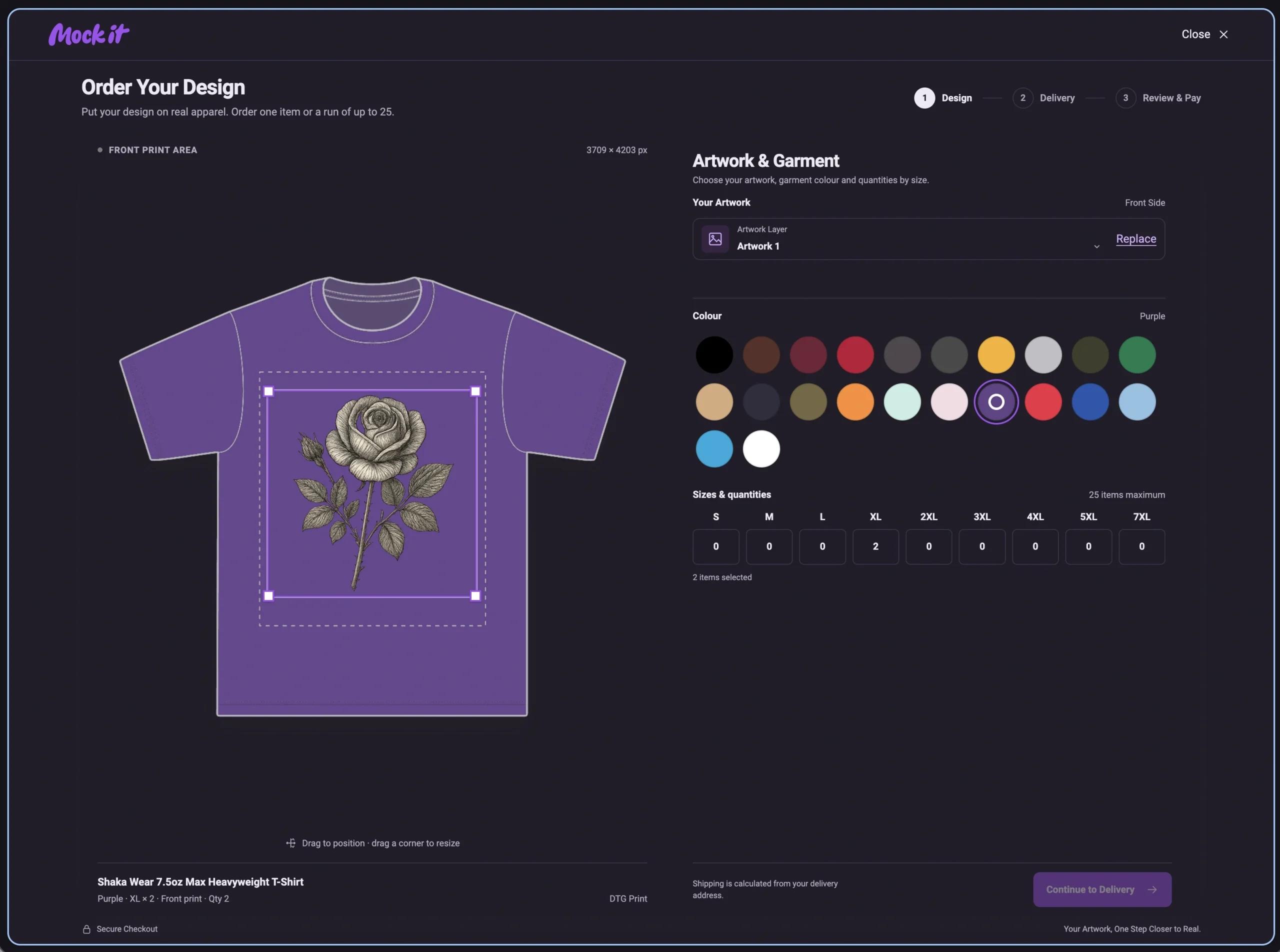
Add the image from Ready to use, select it and position it on the canvas. Try the scale you would use for a chest print, then see whether a larger placement works better.
Change the garment colour to check contrast. Small lines can disappear against a similar colour, while a background that seemed harmless in the image can look like an unwanted box on the shirt.
If the artwork needs a background removed, check our background-removal walkthrough. Always inspect the edges afterwards.
Check the Details Before You Keep It
Zoom in and look at the shapes, symmetry and small details. Check any lettering carefully; if exact text matters, don’t assume the generated image spells it correctly.
For a physical print, check the image resolution and print-area preview too. A generated image that looks good on screen is not automatically suitable at every print size.
Keep a copy of the result you intend to use and save your mockup once its placement is right.
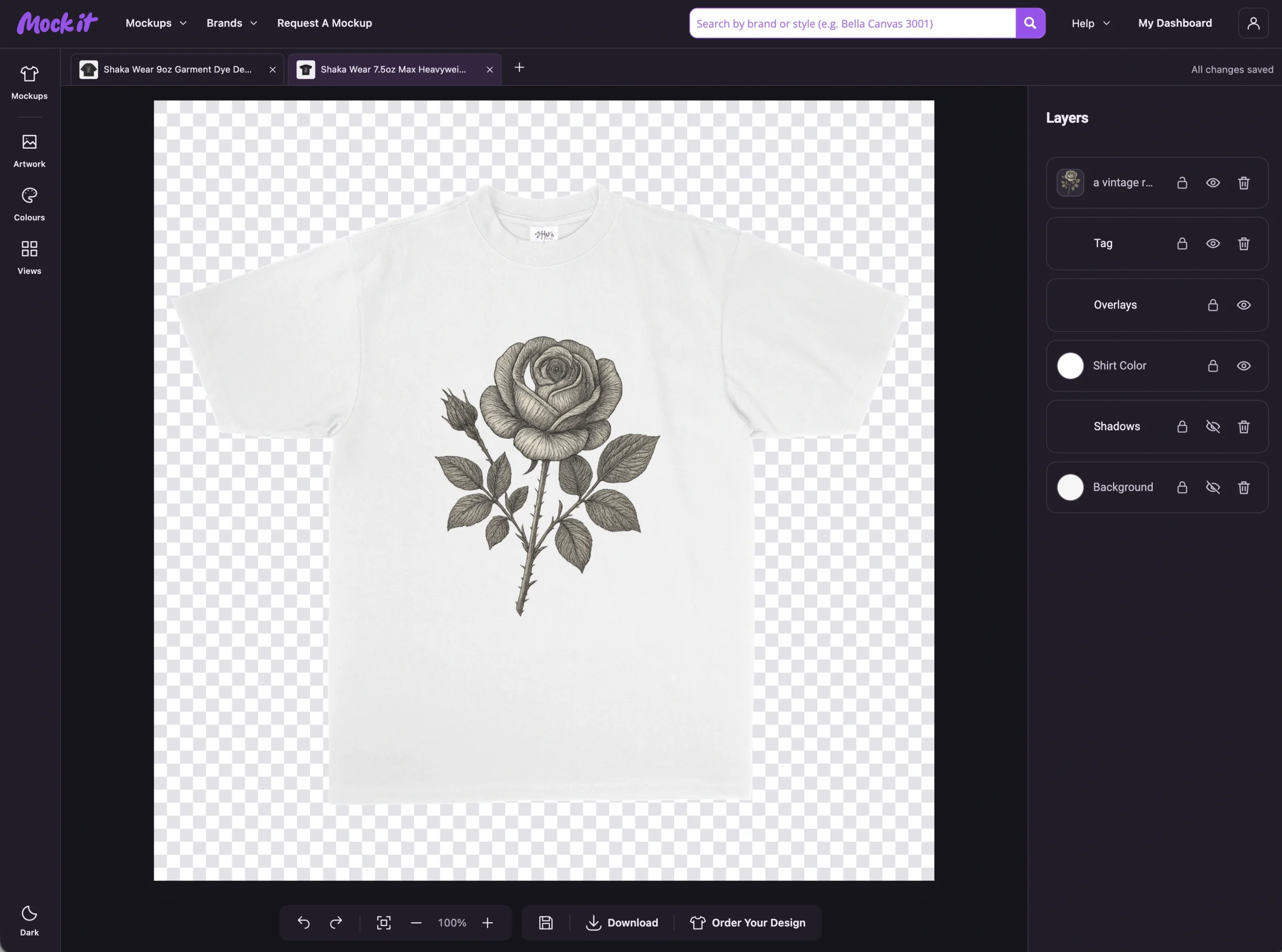
Try One Clear Idea
Start with a subject you’ve been meaning to explore. Write a short, specific prompt, review the result and try it on a blank you know. That will tell you more than judging it as an isolated image.
For the tool instructions, see Generate Artwork With AI.
 Trusted By Thousands Of Designers
  Cancel Your Subscription Anytime
  30 Day Money Back Guarantee