

When creating apparel mockups, the file format you choose affects quality, compatibility, and efficiency. Here’s a quick breakdown of the most commonly used formats and when to use them:
- PNG: Best for web use with transparent backgrounds and lossless compression. Ideal for Shopify, Etsy, and Amazon.
- JPEG: Great for smaller file sizes and quick sharing but sacrifices some quality. Works well for online platforms.
- TIFF: Perfect for high-quality printing, retaining every detail. Not suitable for web use due to large file sizes.
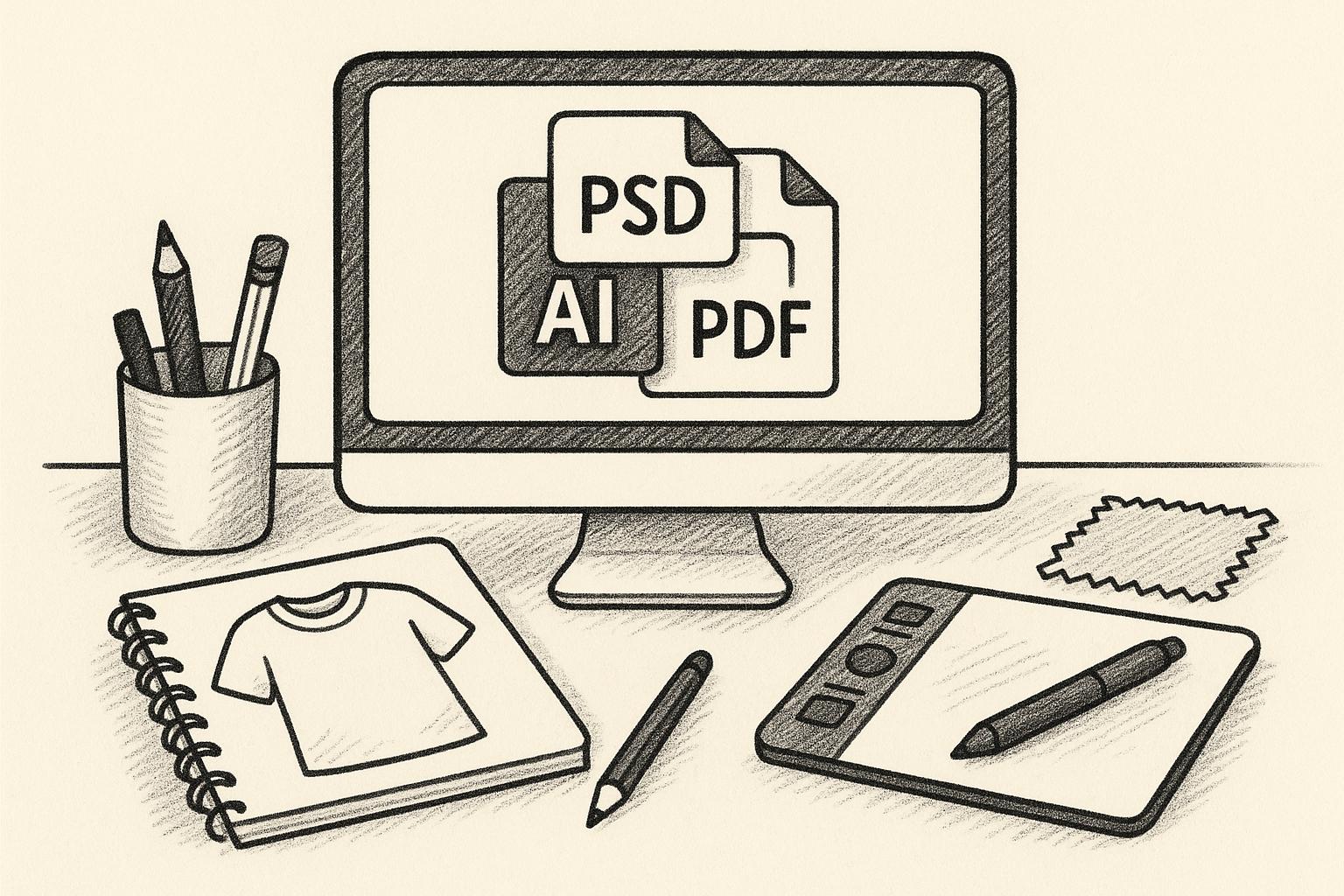
- PSD: Offers full editing control with layers in Adobe Photoshop. Essential for design but not accepted by eCommerce platforms.
- AI: Scalable vector format for logos and graphics in Adobe Illustrator. Excellent for resizing without quality loss.
- EPS: Similar to AI, widely used for vector-based printing. Ensures sharp details at any size.
- PDF: Reliable for sharing and printing. Combines vector and raster elements while maintaining consistent formatting.
Quick Tips:
- Use PNG or JPEG for eCommerce platforms.
- Export TIFF or PDF for print-ready designs.
- Keep working files in PSD or AI for easy edits.
- Choose vector formats (AI, EPS) for scalable graphics.
The right format ensures your designs look professional across digital and physical platforms. Tools like Mock It simplify the process by offering templates and multi-format downloads.
1. PNG
PNG, or Portable Network Graphics, is a go-to format for digital apparel mockups. This format uses lossless compression, ensuring every pixel is preserved. Whether you’re showcasing a t-shirt with intricate screen printing or a hoodie featuring detailed embroidery, PNG keeps your designs sharp and professional-looking.
One standout feature of PNG is its support for transparent backgrounds. Unlike JPEG, PNG files include an alpha channel, allowing you to display your mockup seamlessly on any background. This means no awkward white boxes around the edges when placing your t-shirt design on a website, promotional banner, or social media post. For apparel designers, this flexibility is essential for creating product listings or marketing materials that blend effortlessly into various visual contexts.
Platform Compatibility
PNG files are widely accepted across platforms used in the apparel industry. Etsy, Shopify, and Amazon all support PNG for product images, making it a reliable choice for eCommerce. In fact, Etsy limits uploads to PNG and JPG formats, so you can’t directly use PSD or SVG files there. This universal compatibility saves time and effort, eliminating the need for file conversions when listing products on different marketplaces.
Additionally, PNG files open easily in major design software like Adobe Photoshop, GIMP, and online tools such as Mock It. With Mock It‘s platform, you can create mockups and download them directly in PNG format, ready to upload to your store or share with clients. Their library of over 5,000 templates ensures you can produce high-resolution mockups that maintain quality whether you’re posting on Instagram or creating a Shopify listing.
File Size Efficiency
Optimizing PNG files is crucial for balancing quality with performance. Typical PNG mockups range between 1-2 MB, which is manageable for most online platforms. Smaller, optimized PNG files help cut down on storage costs and improve website performance while preserving the crisp image quality needed for professional visuals.
For websites with extensive product catalogs, file size can significantly impact loading times. Slow-loading pages not only frustrate users but also hurt your SEO rankings. To avoid this, use compression tools to reduce PNG file sizes without losing detail or transparency. This ensures your mockups remain sharp while keeping your website fast and user-friendly.
Scalability
One limitation of PNG is its raster-based nature. Since PNG files rely on pixels rather than vector paths, enlarging them beyond their original resolution can lead to pixelation or blurriness. For instance, a PNG designed for a product thumbnail won’t look sharp if scaled up for a billboard.
To address this, always create PNG files at a high resolution. For print, aim for at least 4,000 x 4,000 pixels at 300 DPI to maintain clarity. For web use, 72 DPI is sufficient. However, if your designs require frequent resizing or large-scale printing, consider using vector formats like SVG or EPS, which maintain sharpness regardless of size. PNG works best for fixed-size visuals like product listings, social media graphics, or website banners.
Editability
While PNG excels in compatibility and transparency, its lack of layer support limits editability. Once a mockup is exported as a PNG, individual design elements like text, graphics, or shadows can’t be adjusted. If a client requests changes – like altering colors or repositioning a logo – you’ll need to revisit the original layered file (e.g., PSD), make the edits, and re-export the PNG.
This makes PNG ideal for finalized visuals rather than ongoing design work. A smart workflow involves keeping your working files in a layered format like PSD while exporting PNG versions for client presentations, online stores, or marketing campaigns. This approach gives you the flexibility to edit when needed while leveraging PNG’s transparency and compatibility for distribution.
Platforms like Mock It simplify this process by allowing you to customize mockups directly within their tools. You can tweak colors, add designs, and even remove backgrounds before exporting the final product as a PNG, eliminating the hassle of switching between multiple software programs for basic adjustments.
2. JPEG
JPEG, short for Joint Photographic Experts Group, is a go-to format for apparel mockups, striking a balance between manageable file sizes and acceptable image quality. This format uses lossy compression, which reduces file size by discarding some image data. While this compression is efficient, it can compromise image quality, especially when the compression level is set too high.
JPEG’s versatility lies in its ability to deliver decent image quality while keeping file sizes small, making it ideal for online use and quick sharing. It’s widely supported across devices and platforms, eliminating the need for specialized software. Understanding when JPEG works best – and when it doesn’t – can help you decide if it’s the right choice for your mockups.
File Size Efficiency
One of JPEG’s biggest advantages is its efficient compression algorithm. Compared to formats like PNG, JPEG files are significantly smaller, which is a huge plus for eCommerce stores managing hundreds of product images. Smaller files mean faster website loading times, a better user experience, and even reduced hosting and bandwidth costs.
To maintain a good balance between clarity and file size, aim for a compression setting between 85–95%. Lower settings might save more space but could introduce noticeable blockiness or blurriness. This compactness makes JPEG an excellent choice for rapid online display, especially since its smaller size is compatible with nearly every platform.
Platform Compatibility
JPEG is universally supported across all major eCommerce platforms, making it a reliable choice for product images. It displays seamlessly on all web browsers and devices, ensuring your designs look consistent everywhere. This broad compatibility simplifies workflows, whether you’re managing a Shopify store or showcasing designs on Etsy.
Tools like Mock It make the process even easier. With over 5,000 high-quality templates, Mock It allows you to create and export mockups optimized for web use. Whether you’re building a catalog or uploading designs to an online marketplace, JPEG’s compatibility ensures a smooth and efficient workflow.
Editability
While JPEG excels in file efficiency, it falls short when it comes to editability. Unlike formats like PSD, which preserve layers for easy adjustments, JPEG flattens all elements into a single image. This makes post-production edits – like tweaking text, repositioning graphics, or modifying shadows – challenging. Additionally, re-editing and re-saving a JPEG can degrade its quality further.
To avoid this issue, always keep your working files in an editable format, such as PSD, and only export to JPEG for final use. Platforms like Mock It help streamline this process by offering on-platform customization tools, allowing you to adjust colors, add designs, and make changes before exporting your finished mockup.
Scalability
As a raster-based format, JPEG relies on pixels rather than scalable vector paths. This means enlarging a JPEG can lead to pixelation, making it unsuitable for large-scale displays. To avoid this, create your mockups at a high resolution from the start. Aiming for at least 4,000 x 4,000 pixels at 300 DPI will ensure clarity for various applications. While 72 DPI might suffice for web-only mockups, higher resolutions provide more flexibility for different uses.
It’s worth noting that JPEG is best suited for digital displays. For print-ready designs, formats like PNG, TIFF, or vector-based files are better options, as they maintain quality without the compression-related degradation of JPEG. Use JPEG for digital previews and client presentations, but switch to lossless or vector formats for production-quality outputs.
3. TIFF
When it comes to mockup file formats, TIFF (Tagged Image File Format) is a standout choice for professional print workflows, especially in apparel design. Known for its lossless compression, TIFF ensures your designs retain every detail, making it a favorite for high-quality print production. However, its large file sizes and limited digital versatility mean it’s not the go-to for everyday web use or quick uploads. Still, for print precision, TIFF remains indispensable.
File Size Efficiency
TIFF files are large because they use either lossless compression or no compression at all. This ensures top-notch quality but comes at the cost of storage and slower transfer times. If you’re managing a large collection of high-resolution mockups, consider using TIFF for print-ready master files and switching to smaller formats like PNG or JPEG for digital tasks. This dual-format approach helps balance quality with practicality.
Platform Compatibility
Despite its strong presence in professional tools like Adobe Photoshop and Illustrator, TIFF isn’t widely supported on eCommerce platforms such as Etsy, Shopify, or Amazon. These platforms typically require formats like PNG or JPEG for product images. As a result, converting TIFF files into web-friendly formats is often necessary. Mock It simplifies this process by offering over 5,000 mockup templates and export options tailored for both digital displays and high-quality printing, ensuring you have the right format for every platform.
Editability
One limitation of TIFF is that it exports as a flattened file. Once saved in this format, individual design elements can’t be easily adjusted. To maintain flexibility, it’s best to keep your working files in PSD format, which preserves layers. Export to TIFF only after finalizing your design to lock in the quality for printing.
Scalability and Color Accuracy
TIFF files shine in handling high resolutions and supporting rich color depths, up to 16 bits per channel. This ensures smooth gradients and accurate color reproduction, making them ideal for detailed prints. For professional results, export your mockups at 300 DPI to achieve the sharpness needed for intricate designs, especially when replicating fabric textures. Additionally, use a CMYK color profile for print projects to maintain color fidelity, while an sRGB profile works better for digital displays. While TIFF excels in print environments, its size makes it less practical for online use.
4. PSD
PSD (Photoshop Document) is the go-to file format for Adobe Photoshop and a staple in the apparel design world. Unlike flat image formats like PNG or JPEG, PSD files keep every layer intact – allowing designers to work with layers, masks, adjustment settings, and smart objects. Think of PSD files as your editable blueprint, ready to be exported into formats suited for web or print. This versatility is why PSD files are a favorite for crafting detailed apparel mockups.
Editability
When it comes to editability, PSD files are unmatched. Their layer-based structure lets you tweak every detail of your mockup – from colors and textures to shadows and effects – with pinpoint accuracy. You can toggle layers on and off or make non-destructive adjustments to refine your design without committing to permanent changes.
Smart layers take this a step further. By dropping your artwork into these layers, you can make edits that naturally adapt to the folds, shadows, and highlights of clothing items. While formats like PNG and SVG are excellent for showcasing finished designs, PSD files are indispensable during the creative and revision stages.
For example, platforms like Mock It offer over 5,000 PSD templates that take full advantage of these features. These templates let you fine-tune textures, add vector graphics, and make detailed adjustments, all while giving you the option to export in multiple formats like PNG, PDF, or SVG.
Scalability
PSDs are built for high-resolution work. They support resolutions up to 4,000 x 4,000 pixels or more, ensuring your designs look sharp and vibrant. If you’re designing for apparel, this high resolution is key to maintaining crisp details.
To ensure accurate colors, use an sRGB color profile for digital designs and a CMYK profile for print projects. One important note: PSD is a raster-based format, meaning you need to start with a high resolution. Unlike vector formats, scaling up later can result in a loss of quality. This makes PSD an ideal choice during the design phase, before converting to more display-friendly formats.
File Size Efficiency
Because PSD files store all layers and editing data, they tend to be larger than compressed formats like JPEG or PNG. This extra file size is the trade-off for having complete creative control. A common workflow is to design and refine your mockup in PSD, then export the final version as a PNG for web use. For projects exceeding PSD’s size limitations, you can switch to PSB (Photoshop Big) files, which are built for handling larger projects.
Platform Compatibility
While PSD files are perfect for design work, they aren’t directly compatible with most eCommerce platforms. Sites like Etsy, Shopify, and Amazon only accept formats like PNG or JPG for product images. This means you’ll need to convert your PSD files before uploading. Additionally, not all clients or manufacturers have access to Adobe Photoshop, making it easier to share mockups as PDFs, which maintain consistent formatting across devices.
To streamline your workflow, always keep a working PSD file. This allows you to export final images in formats like PNG or TIFF as needed, giving you the flexibility to meet platform or client requirements without losing your original design.
5. AI
Switching from layered, pixel-based PSD workflows to AI files introduces the benefit of pure vector scalability. AI files, created in Adobe Illustrator, rely on vector graphics instead of pixels. This makes them perfect for scalable designs, particularly when working on logos, graphic prints, or illustrations in apparel mockups that require precision and flexibility.
Scalability
The standout feature of AI files is their ability to scale without losing quality. Since they’re based on vectors rather than pixel grids, designs can be resized infinitely – whether you’re shrinking them for social media thumbnails or enlarging them for banners or other large-format prints. This adaptability ensures your designs look sharp across all mediums, from digital displays to physical materials.
Editability
AI files shine when it comes to editing. Adobe Illustrator allows designers to tweak layers, paths, text, and effects with ease. Whether you’re adjusting colors, fine-tuning typography, or reshaping elements, the format ensures every change maintains the design’s integrity. This level of control makes AI files especially useful for creating scalable, detailed graphics. Plus, their flexibility pairs well with the compact file efficiency discussed below.
File Size Efficiency
Compared to raster formats like TIFF or PNG, AI files are typically smaller in size, which is a big plus for storage and sharing. However, file sizes can grow if you embed raster elements or work with intricate designs. Even so, they remain a practical choice for managing complex projects without overwhelming your storage.
Platform Compatibility
One limitation of AI files is their restricted compatibility with platforms. Many eCommerce platforms, including Etsy, Shopify, and Amazon, don’t support AI files directly for product listings. Instead, they favor universal formats like PNG or JPEG. Additionally, AI files require Adobe Illustrator for editing, which can be a hurdle for team members or clients without access to Adobe Creative Suite. To work around this, designers often use AI files as master documents, exporting final designs in formats suited to specific platforms.
For example, if you’re using Mock It, you can create custom design elements in AI format and seamlessly incorporate them into your mockups. Once finalized, you can export these designs as PNG for web use, PDF for print, or JPEG for quick sharing.
Color and Resolution Considerations
It’s crucial to set the correct color profile from the start – RGB for digital projects and CMYK for print – to avoid unexpected color shifts later. AI files support both color modes, but switching between them mid-project can create inconsistencies. If your design includes raster elements, make sure they’re set to at least 300 DPI for print-quality results.
sbb-itb-1e8f9ab
6. EPS
EPS is a well-established vector format widely used in professional design and printing. Unlike pixel-based formats, EPS relies on mathematical equations to define shapes and lines, ensuring precision and clarity at any size. This makes it especially useful for apparel mockups that need to maintain accuracy across varying dimensions. While newer formats are gaining traction, EPS remains a staple in professional printing and garment production, offering distinct advantages that complement other formats.
Scalability
One of the biggest strengths of EPS files is their limitless scalability. Because they’re vector-based, you can resize designs from tiny labels to large back prints without losing quality or sharpness. In contrast to raster formats like PNG or JPEG, which can pixelate when enlarged, EPS files retain their crisp lines and clean details no matter the size. This is a game-changer for apparel designers who need to adapt the same design across multiple garment sizes and styles. Whether it’s a small chest logo or a full-back graphic, EPS delivers consistent results. Its scalability also means designers don’t have to create separate files for different sizes, streamlining workflows and saving time.
Editability
EPS files are highly editable in vector-based software like Adobe Illustrator, allowing designers to tweak paths, colors, and shapes with precision. This makes them ideal for clean, simple designs such as logos, typography, and geometric illustrations.
That said, EPS isn’t as versatile as PSD files when it comes to complex mockups. PSD offers advanced features like layers, masks, and smart objects, which are better suited for photorealistic textures or intricate raster work. However, for scalable design elements or vector graphics – like logo placement on garments – EPS excels.
Another practical benefit of EPS is its ability to embed fonts and images, making the files self-contained and reliable for print production. To avoid issues during printing, it’s a good practice to convert fonts to outlines before finalizing the file. While EPS offers solid editability, managing file size and complexity is crucial for efficient workflows.
File Size Efficiency
EPS files are generally compact when used for simple vector designs with flat colors and clean paths. They’re often smaller than high-resolution PNGs, making them easier to store and share. However, the file size can grow significantly if the EPS includes embedded raster images or overly complex vector paths with numerous nodes.
For this reason, EPS works best for straightforward design elements rather than detailed, photorealistic presentations. Keeping vector paths clean and avoiding unnecessary complexity helps maintain manageable file sizes and ensures smooth handling during production.
Platform Compatibility
EPS is widely supported across professional design and printing software, including Adobe Illustrator, Adobe Photoshop, and CorelDRAW. In the apparel industry, it’s a go-to format for print shops, embroidery services, and screen printing facilities, thanks to its seamless integration with production equipment and workflow software.
The format also supports CMYK color mode, which is critical for accurate color reproduction in printed apparel. For digital displays, however, using the sRGB color profile ensures colors appear correctly on screens. Many designers maintain separate EPS files – one in sRGB for digital mockups and another in CMYK for print – to ensure optimal color accuracy in both contexts.
While EPS is excellent for professional design and printing, it’s not web-friendly. To share designs online or use them in eCommerce, you’ll need to export EPS files to formats like PNG or JPEG. For instance, if you’re using Mock It to create apparel mockups, you can design in EPS for precision and then export to PNG for web use or JPEG for quick sharing. This approach lets you retain the scalability and editability of EPS while ensuring compatibility across all platforms.
When working with embedded raster images in EPS files, maintain at least 300 DPI for print quality. For digital mockups, 72-96 DPI is sufficient. Keeping your vector paths clean and avoiding unnecessary complexity will prevent file bloat and ensure smooth production workflows. Among the formats discussed, EPS stands out for its balance of scalability, precision, and efficiency in professional apparel design and printing.
7. PDF
When it comes to final delivery formats, PDFs (Portable Document Format) stand out as a dependable choice in professional design workflows. While tools like PSD and AI are used for creating designs, PDFs excel in ensuring your apparel mockups appear consistent across all devices and platforms. This reliability makes them a go-to for client presentations, manufacturer communications, and professional portfolios.
Scalability
One of the biggest strengths of PDFs is their ability to handle both vector and raster content. Vector elements, such as logos, text, or geometric designs, can scale infinitely without losing sharpness. This means you can zoom in or print at any size while maintaining crisp details. For apparel designers, this is especially handy when creating product catalogs that showcase designs across various garment sizes – from kids’ clothing to oversized adult apparel.
However, raster images in PDFs are still bound by their resolution. This makes PDFs most effective when your mockups rely heavily on vector graphics rather than detailed photographic images. The combination of vector and raster handling gives PDFs an edge over other formats, offering flexibility without compromising quality.
Editability
Unlike PSD files, which allow layer-based editing and full control over design elements, PDFs are primarily designed for final presentations rather than active editing. While you can annotate or view PDFs, making significant design changes requires converting them back into editable formats like PSD or AI.
This limitation, however, works in your favor when delivering finalized designs. Sending a PDF to a client or manufacturer ensures your mockup remains exactly as intended, with no risk of accidental edits. This makes PDFs a trusted format for professional presentations and brand deliverables.
File Size Efficiency
PDFs are generally efficient in terms of file size, especially when they contain mostly vector graphics and simple designs. A clean mockup with flat colors and vector elements results in a compact file that’s easy to share via email. Plus, PDFs offer compression options, letting you balance quality and file size according to your needs.
However, embedding high-resolution raster images or including multiple pages can significantly increase the file size. For scenarios like eCommerce, where fast loading times are crucial, formats like PNG or JPEG might be more practical. On the other hand, for print-ready mockups or presentations where quality matters more than file size, PDFs remain an excellent choice.
Platform Compatibility
PDFs shine when it comes to compatibility. Unlike PSD files that require Adobe Photoshop or similar software, PDFs can be opened on virtually any device using free PDF readers, which are often pre-installed on computers, tablets, and smartphones. This universal accessibility ensures your mockups look the same whether viewed on Windows, macOS, iOS, or Android.
For instance, if you’re using tools like Mock It to create apparel mockups, you can easily download professional visuals in PDF format. This simplifies sharing with clients, manufacturers, or printers, eliminating the need for manual format conversions. PDFs also support CMYK color profiles, making them ideal for professional printing while preserving color accuracy – critical for brand presentations and client deliverables.
That said, for web platforms like Etsy, you’ll likely need to convert your PDF to PNG or JPEG for uploading. A recommended workflow is to design your mockup in an editable format like PSD at high resolution (4,000 x 4,000 pixels is a good benchmark), then export it as a PDF for final delivery. For print applications, ensure the color profile is set to CMYK to maintain accurate color reproduction.
Versatility for Presentations
One standout feature of PDFs is their ability to house multiple pages in a single document. This is invaluable for showcasing different mockup variations or clothing styles in one cohesive file. For example, you can display the same design across various garment types – t-shirts, hoodies, and sweatshirts – or offer different color and size options, all in one PDF. This approach streamlines client reviews and simplifies file management, making it an excellent choice for pitch presentations and portfolio displays.
Pros and Cons
Choosing the right file format comes down to your workflow goals. Balancing factors like scalability, editability, file size, and platform compatibility will help you make smarter decisions.
Here’s a quick breakdown of how the most common file formats stack up in these areas:
| Format | Scalability | Editability | File Size | Platform Compatibility |
|---|---|---|---|---|
| PNG | Limited – loses quality when scaled up (raster format) | Not editable – final display format | Large due to transparency | Excellent – works on Etsy, Shopify, Amazon, and most eCommerce platforms |
| JPEG | Limited – quality degrades when resized | Not editable – compressed final format | Small, thanks to lossy compression | Excellent – universally supported across devices and platforms |
| TIFF | Limited – retains detail but still raster-based | Minimal – designed for archival use | Very large without compression | Limited – mainly for professional print workflows |
| PSD | Excellent – handles high resolutions (up to 32 bits per channel) | Excellent – layer-based editing with masks and smart objects | Large, especially with multiple layers | Limited – requires Adobe Photoshop; not accepted by Etsy or most eCommerce platforms |
| AI | Excellent – scalable vector format | Excellent – fully editable in Adobe Illustrator | Moderate – efficient for vector content | Limited – requires Adobe Illustrator or compatible software |
| EPS | Excellent – maintains quality at any size (vector) | Good – editable in vector programs | Moderate to large, depending on complexity | Good – widely supported by design software |
| Excellent for vectors – raster elements depend on resolution | Limited – viewing-focused, not editing-friendly | Efficient for vectors; larger with high-res images | Excellent – works on any device with a PDF reader |
Practical Workflow Tips
For detailed editing, PSD is the go-to format. It gives you complete control over layers, masks, and adjustments, allowing you to fine-tune every detail to match your brand vision. However, PSD files can’t be uploaded directly to platforms like Etsy, which only accept PNG and JPEG formats.
This limitation shapes a common workflow: create and edit in PSD for flexibility, then export to PNG or JPEG for final use. PNG is ideal when transparency and lossless quality are essential, especially for eCommerce listings. On the other hand, JPEG is better for situations where file size matters more than perfect quality, such as sharing or web uploads where fast loading speeds are critical.
For print production, TIFF is your best bet. It preserves fine details and avoids compression artifacts, making it perfect for high-quality prints. However, the trade-off is massive file sizes, which can complicate storage and management.
When working with logos, icons, or graphics that need to scale across various apparel sizes, vector formats like AI and EPS are ideal. They maintain sharp edges regardless of size. However, for realistic mockups with detailed textures or photographic elements, raster formats like PNG or PSD are better suited.
Mockup Resolutions and Color Profiles
The recommended resolution for professional apparel mockups is 4,000 x 4,000 pixels. This ensures clarity for both digital displays and potential print use. Pair this with the appropriate color profile: sRGB for digital mockups on websites and eCommerce platforms, and CMYK for print-ready files intended for physical production. Keeping your master file in PSD format allows for last-minute tweaks to meet these specs before exporting.
File Size and Platform Compatibility
File size becomes a key factor when managing large product catalogs. JPEG is great for quick loading thanks to its smaller size, while PNG retains full quality at the cost of larger files. Your choice will depend on the specific needs of your distribution channels.
Platform compatibility also plays a huge role. While PSD offers unmatched editing capabilities, you’ll need to convert your files to PNG or JPEG for uploading to major eCommerce platforms. For universal accessibility, PDF is a solid option – it opens on almost any device without special software. However, for web platforms, PDFs still need to be converted to PNG or JPEG for uploads.
For a streamlined experience, tools like Mock It simplify the process with over 5,000 templates and export options in multiple formats. It’s a time-saver for apparel mockups, offering flexibility and efficiency.
Conclusion
Selecting the right file format for apparel mockups largely depends on how you plan to use them. For print production, go with PNG or TIFF files at 4,000 x 4,000 pixels in CMYK. This ensures your designs retain their detail and color accuracy.
For digital use, PNG is ideal for its transparency and high-quality output, while JPEG works better when you need smaller file sizes and quicker loading times. These factors also guide how files should be prepared for online sales.
If you’re selling on platforms like Etsy, you’ll need to upload PNG or JPEG files. Always convert your editable PSDs into these formats before listing. PNG’s support for transparency is especially useful for showcasing multiple color options without worrying about background interference.
A good workflow starts with a PSD for editing, followed by exporting to PNG or TIFF, depending on the intended use. Keep your original PSD files for future edits, but convert them to the proper format to simplify distribution.
Platforms like Mock It make this process seamless. With over 5,000 clothing mockup templates from 45+ brands, they offer multi-format downloads tailored to your needs. Their tools – including a scene creator, background remover, and AI text-to-image generator – let you manage your visuals effortlessly. Whether you’re prepping files for Etsy, social media, or print, Mock It handles the technical side, so you can focus on designing pieces that sell.
FAQs
How can I balance file size and quality when creating apparel mockups for online use?
When creating apparel mockups, choosing the right file format is key to balancing file size and image quality. PNG is a solid option if you need high-quality visuals with transparent backgrounds, while JPEG works well for keeping file sizes smaller without a noticeable dip in quality. For vector designs, SVG is a smart pick, offering scalability and crisp detail.
For online use, aim for a resolution of 72 DPI (dots per inch) – this keeps file sizes manageable while ensuring your mockups look sharp on digital screens. To further optimize, use compression tools to shrink file sizes without losing much quality. Tools like Mock It can be a lifesaver, providing pre-optimized, professional mockup templates that are ready to use online, saving you effort and ensuring your visuals stand out.
What’s the best way to keep colors accurate in apparel mockups when moving from digital to print?
When creating apparel mockups, keeping colors accurate is crucial. Always use high-resolution files and rely on color libraries like Pantone or CMYK to align with industry printing standards. Tools like Mock It simplify this process by offering features tailored for realistic, print-ready mockups. These tools help ensure your designs remain consistent across digital and physical formats, minimizing unexpected issues during production.
Why should you save apparel mockup files in formats like PSD or AI, and how does this impact the final design?
When working on apparel mockups, saving your files in formats like PSD (Photoshop) or AI (Illustrator) is key. These formats retain editable layers and maintain the high-quality details necessary for making precise tweaks. Whether it’s adjusting colors, resizing elements, or adding new components, these formats let you refine your designs without sacrificing quality.
They also ensure your mockups are polished and ready for both print and digital use. Tools such as Mock It simplify the process further by providing top-notch, customizable templates compatible with these formats. This gives you more control and creative freedom compared to many other options out there.