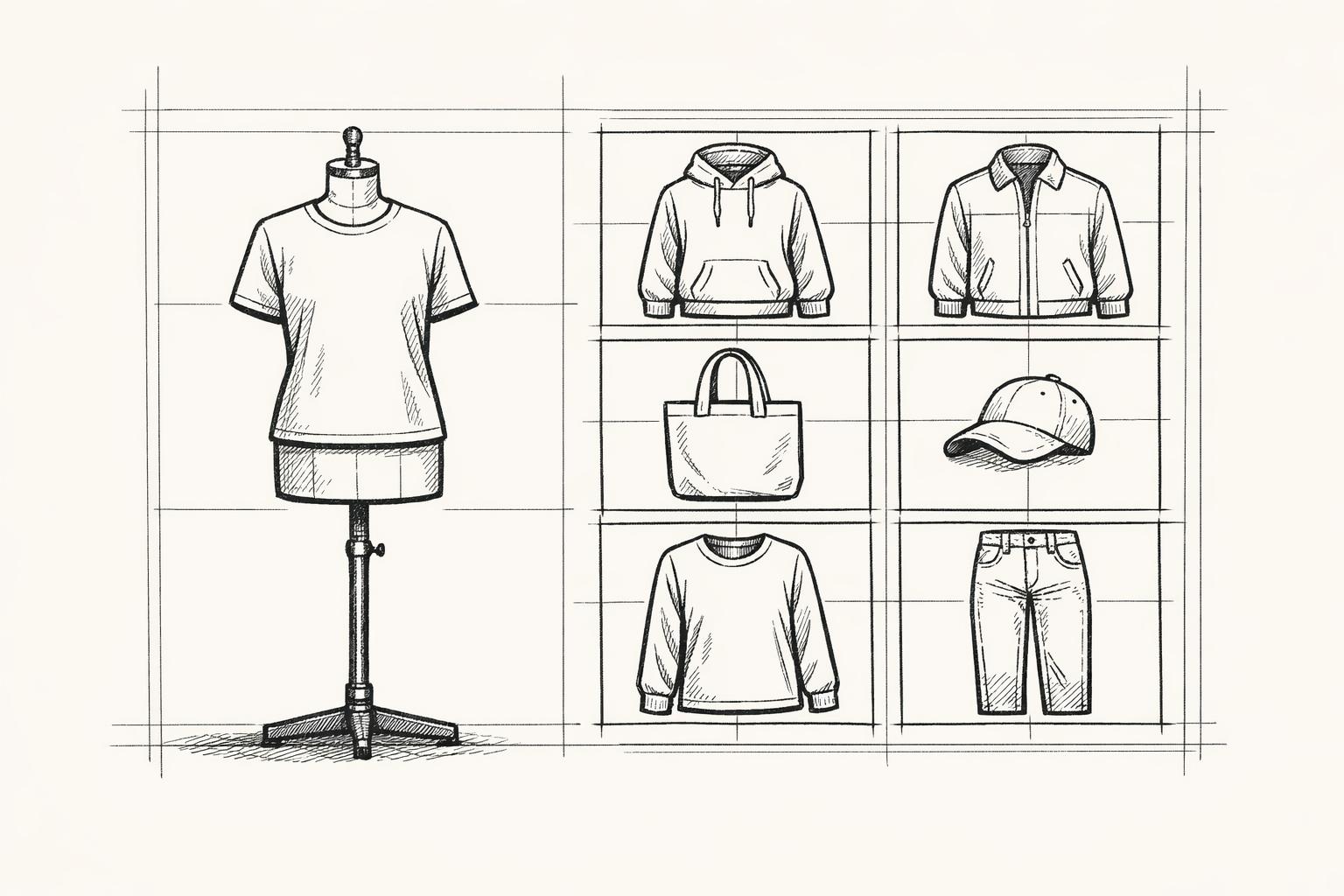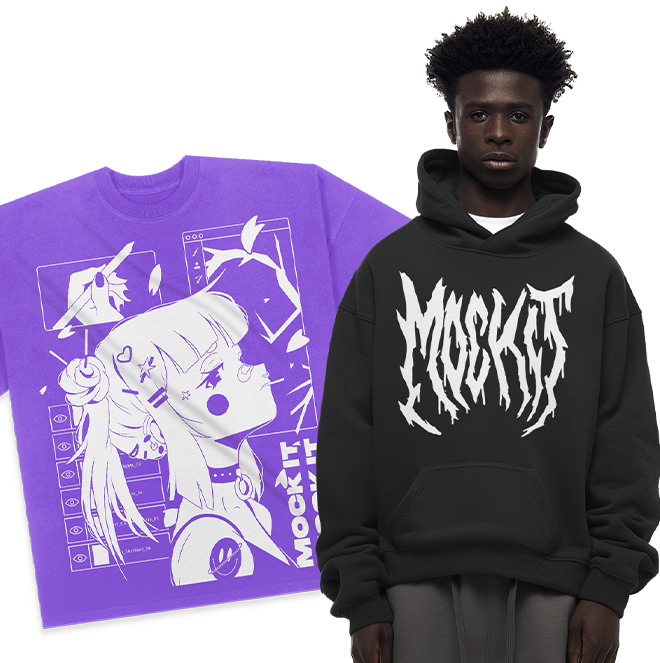


Creating mockups involves using a mockup generator to upload designs and customize them, change colors, test your mockups, and download a high-resolution final product that represents a realistic digital model. Mockups serve as prototypes or models that show how a product will appear before production, making them useful for product images in an online store. This process helps users save time and money by reducing the need for physical samples during early design stages.
A mockup generator simplifies the design process by allowing users to work with templates, resize designs, adjust colors, and experiment with different views. The system processes these inputs to produce a realistic, convincing output that reflects the final product from multiple dimensions and angles. Mockups support virtual prototyping, where a digital draft improves clarity, supports better decisions, and ensures the final product aligns with design expectations.
Steps to create mockups are:
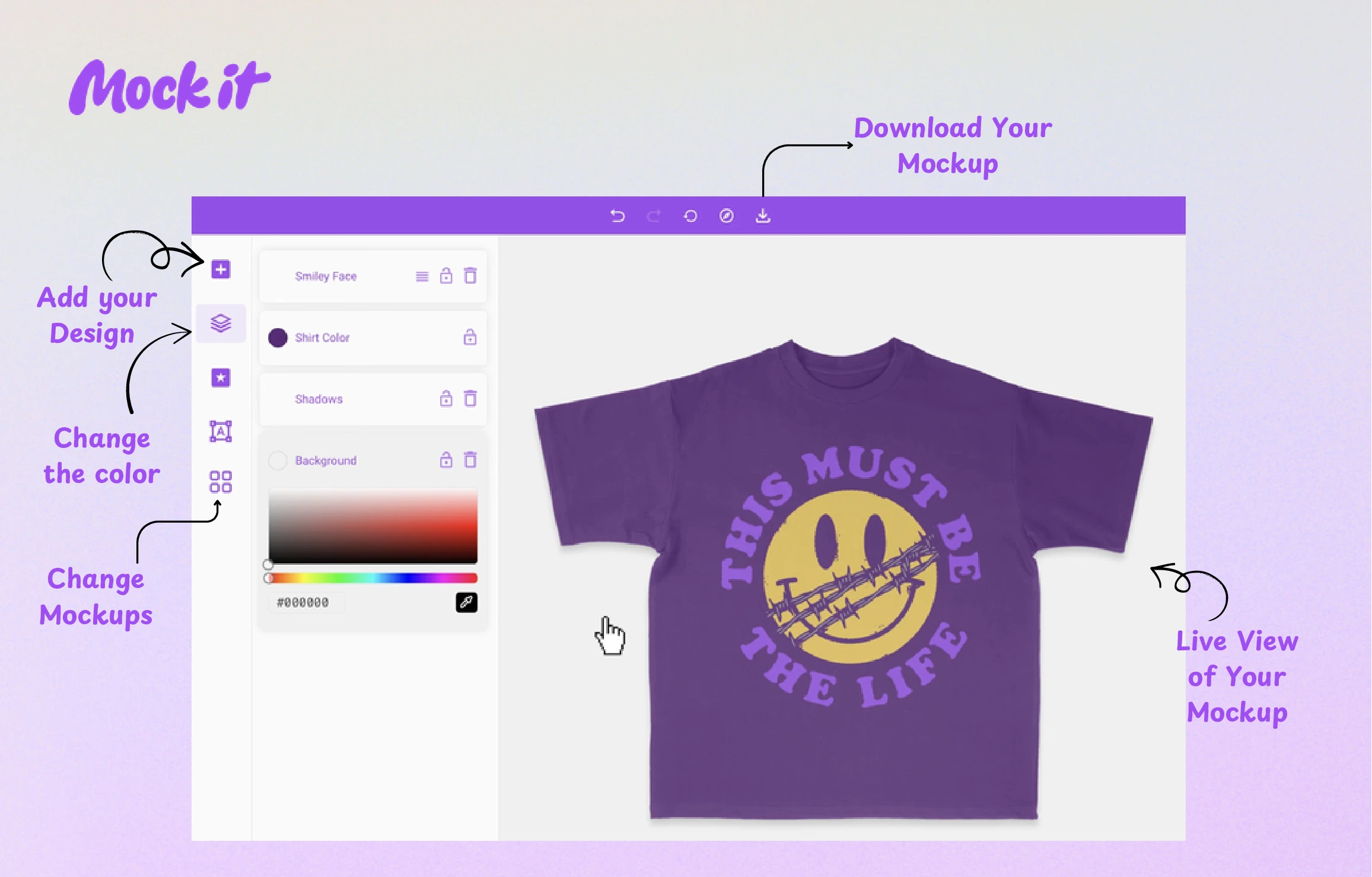
- Step 1: Add Your Design
- Step 2: Change the Colors
- Step 3: Change Mockups
- Step 4: Live View of Your Mockup
- Step 5: Download Your Mockup
5 Steps to Create Mockups
To create realistic mockups efficiently, upload your designs and customize them by changing colors, testing variations, and downloading the final product using a structured design process that saves time and money. These steps apply to different products, such as apparel mockups, including t-shirts for online store product images. Each step builds on the previous one, with the system processing design elements to generate a convincing digital model that represents the final product’s appearance.
Step 1: Add Your Design
Start by uploading your design file to a mockup generator, which usually accepts common formats like PNG or JPEG, and apply it to a chosen product template such as a t-shirt, hoodie, or other merchandise. Carefully position the design on the item, adjusting its size to fit the print area while keeping proportions intact.
Pay close attention to alignment, spacing, and how the design interacts with the product surface, for example, chest placement on a t-shirt. Accurate positioning and scaling make the mockup appear realistic and professional, resulting in a polished and convincing presentation of your design.
Step 2: Change the Colors
After placing your design, adjust the product colors to match your intended final version. Use the mockup generator’s color tools to modify elements such as fabric, background tones, or product variations, ensuring the overall appearance aligns with your vision.
Select colors that complement the design and maintain clear visibility, with enough contrast to make the artwork stand out. Aim for realism by reflecting how the product would appear under normal lighting conditions. Thoughtful color choices help create mockups that are trustworthy and professional, which is especially important for e-commerce, where customers rely entirely on images to make purchasing decisions.
Step 3: Change Mockups
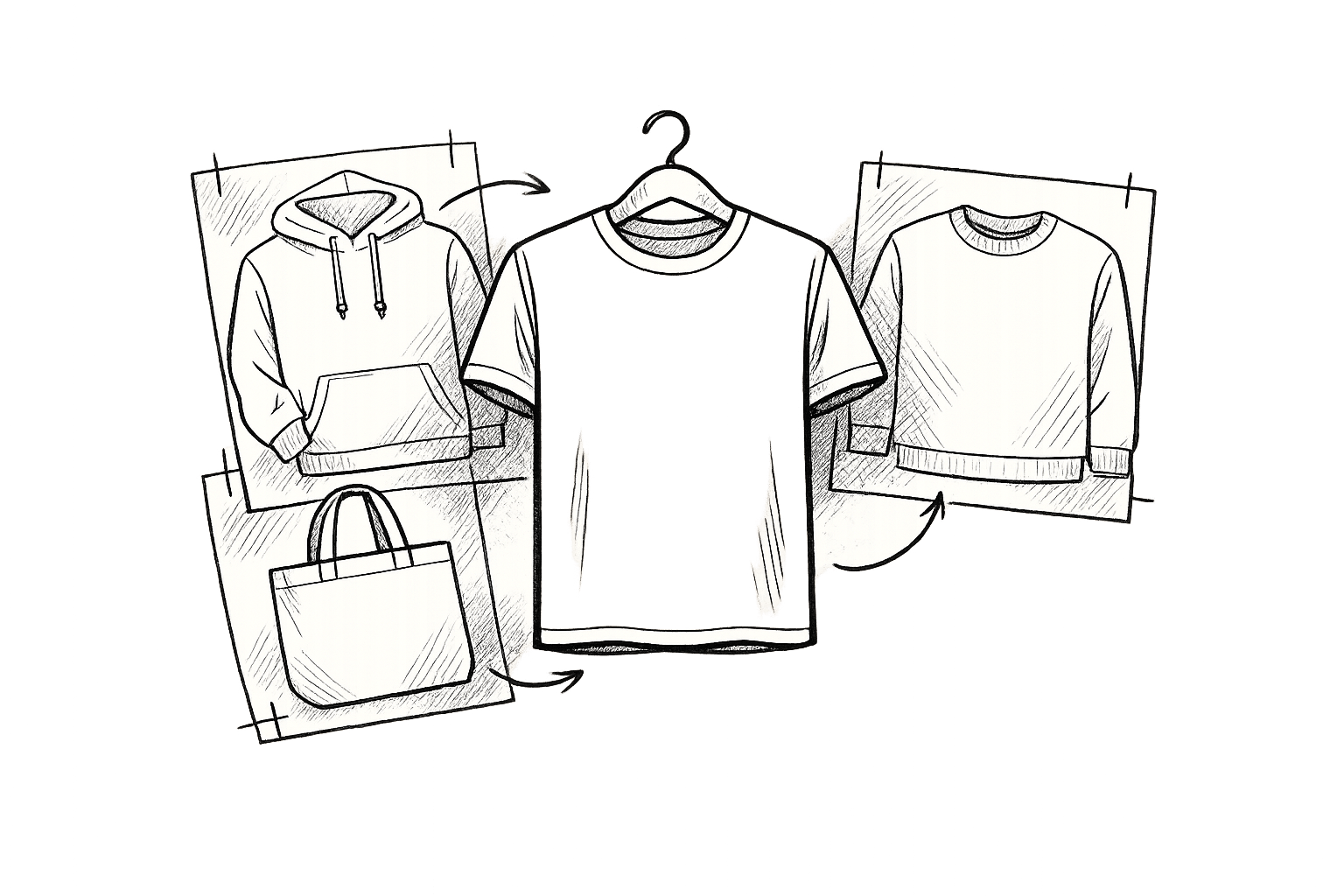
Next, experiment with different mockup templates and layouts, exploring styles such as flat lays, folded views, or model-based presentations. Trying multiple mockups allows you to see your design from various angles, understand how it appears on different product types, and compare presentation styles.
Creating these variations helps you determine which version best highlights your design and provides flexibility for marketing. Different platforms, including websites, ads, and social media, may benefit from distinct visual styles, so having multiple options ensures your design looks its best across all channels.
Step 4: Live View of Your Mockup
Before finalizing your mockup, activate the live preview feature to examine the design closely. Viewing it in real time on the product lets you see how the final version will appear and how it fits with the overall look.
Carefully check alignment, positioning, proportions, image clarity, and how the design interacts with shadows, folds, textures, and other product details. Make any necessary adjustments to fix scaling issues, distortions, or misplacement. Treat the live preview as a final inspection step to ensure your mockup looks polished, professional, and accurate before exporting.
Step 5: Download Your Mockup
Once all adjustments and validations are complete, the final mockup can be downloaded. The mockup generator exports files in high resolution, making them suitable for use as product images in an online store.
The exported file serves as a digital prototype of the product, useful for marketing, print references, or virtual presentations. High resolution ensures the mockup maintains clarity and sharpness across different platforms. Completing this step finalizes the design process, delivering a polished mockup that accurately represents the intended final product.
How to Create Mockups for Popular Apparel T-Shirts?
Creating t-shirt mockups involves selecting a suitable template, uploading a design, adjusting its placement, choosing fabric colors, and exporting the final result in high resolution using a mockup generator. Following this process helps produce apparel mockups that present a realistic and convincing version of the final product for use in online stores. Each step ensures the design aligns properly with the t-shirt mockup, its fabric texture, and printing dimensions.
- Select a T-Shirt Template
Choose a t-shirt template, such as crewneck, v-neck, or oversized, to define the product’s structure and style. The template acts as a base model and determines how the design will fit and appear across different product views.
- Upload Your Design
Upload your design file into the selected template and apply it to the t-shirt model. Adjust the size and alignment so the design fits properly within the printable area and aligns with the product surface.
- Adjust Design Placement
Position the design in areas such as the center, left chest, or full front, depending on the desired layout. Proper placement ensures balanced proportions and helps the mockup reflect the appearance of a realistic final product.
- Choose Fabric Colors
Select fabric colors from the mockup generator’s library to match the intended final product. Consistent color choices between the design and fabric improve visual quality and enhance the realism of the mockup.
- Download in High Resolution
Export the final mockup in high resolution after completing all adjustments. The output maintains clarity and sharpness, making it suitable for online store listings and ensuring a professional product presentation.
What are the tips for Realistic Mockup Creation?
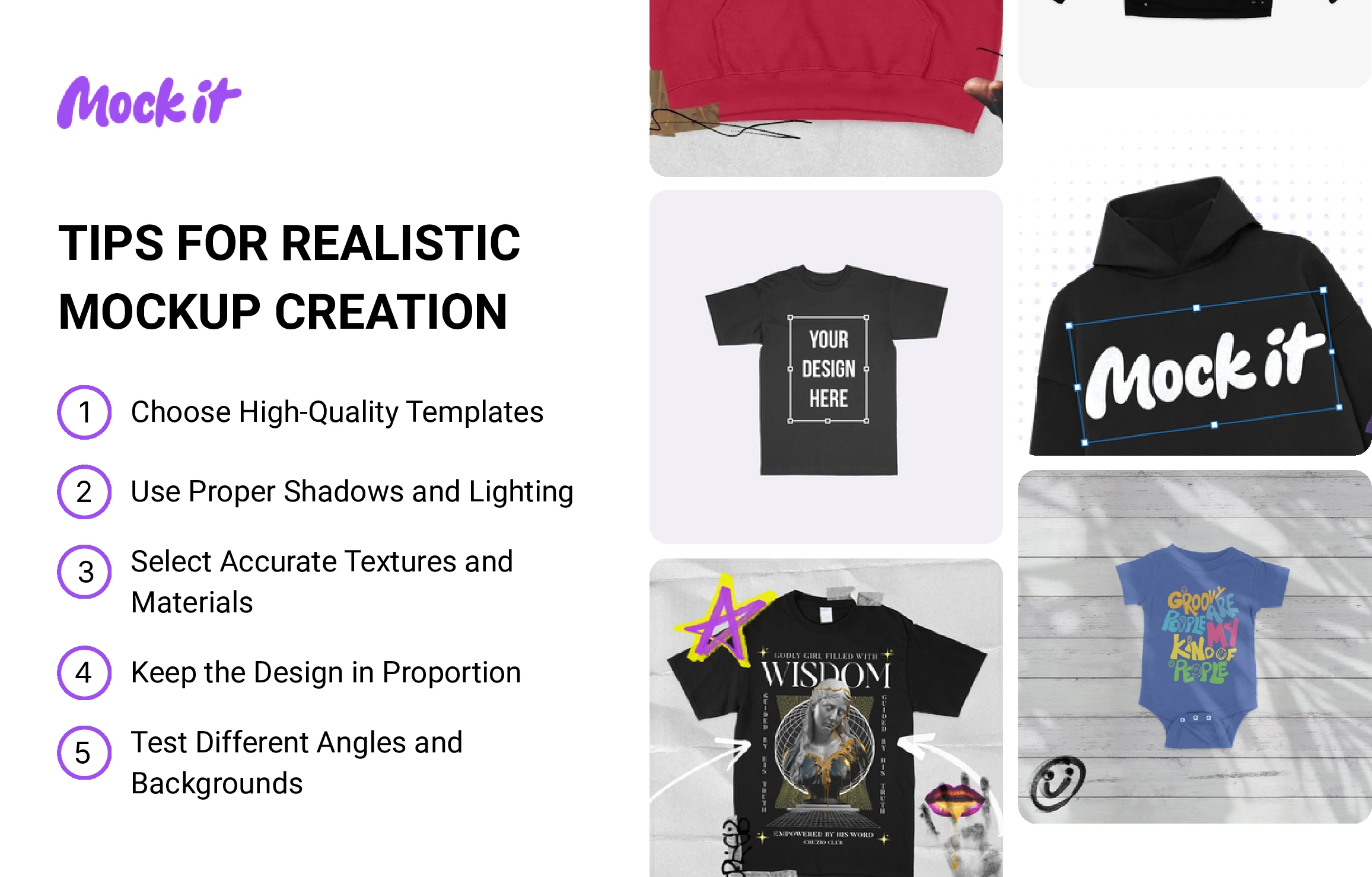
Realistic mockups depend on selecting high-quality templates, proper lighting, accurate textures, correct proportions, and varied angles. Applying these tips helps the design integrate naturally with the product model, enhancing the mockup’s overall appearance. A realistic mockup reflects the final product and produces convincing product images suitable for an online store.
- Choose High-Quality Templates
Start with a high-quality template to build a strong foundation for the mockup. Templates with clear structure, accurate dimensions, and fine details enhance the final product’s appearance, while low-detail templates can reduce clarity and realism.
- Use Proper Shadows and Lighting
Adjust shadows and lighting to create depth and a realistic effect. Correct lighting helps the design blend seamlessly with the product surface, while shadows define form and structure, making the mockup appear more lifelike.
- Select Accurate Textures and Materials
Pick textures that closely match the actual product material, such as fabric surfaces in apparel mockups. Realistic textures allow the design to interact naturally with the product, enhancing the authenticity of the digital model.
- Keep the Design in Proportion
Align the design with the product dimensions to maintain proper proportions. Correct scaling prevents the design from looking stretched or compressed, preserving the mockup’s structure and consistent appearance.
- Test Different Angles and Backgrounds
Experiment with multiple angles and backgrounds to evaluate how the mockup appears from different perspectives. Trying different viewpoints highlights the most convincing presentation, while a well-chosen background improves the design’s clarity and visibility.
What are the Common Mistakes to Avoid in Mockup Creation?
Avoid common mockup mistakes such as using low-quality templates, ignoring proper proportions, overcomplicating designs, applying inconsistent colors, and failing to check clarity and sharpness before finalizing. These errors can reduce the realism, structure, and overall quality of a mockup, making product images less convincing. Identifying and correcting these issues during the design process helps create professional and realistic mockups.
Using Low-Quality Templates
Low-quality templates reduce clarity and detail, producing weak mockups that do not accurately reflect the final product. High-quality templates provide proper structure, accurate dimensions, and fine details, which improve realism and overall appearance.
Ignoring Fit and Proportions
Incorrect scaling or ignoring the product’s dimensions can stretch, compress, or misalign the design. Keeping the design in correct proportion ensures it fits naturally on the product and preserves a realistic appearance.
Overcomplicating Your Design
Overly complex designs with too many elements create visual confusion and reduce clarity. Simplifying the design maintains focus and ensures the mockup presents a clean, convincing final product.
Using Inconsistent or Unnatural Colors
Inconsistent or unnatural colors can make the mockup look unrealistic and misrepresent the final product. Selecting colors that match the product material and maintain harmony between design and surface improves accuracy.
Forgetting to Check for Clarity and Sharpness
Blurry or low-resolution mockups reduce usability for online store listings. Reviewing the mockup in live view and exporting it in high resolution ensures sharpness and preserves image quality.
What are the Best Tools for Creating Mockups?
The best tool for creating mockups is a mockup generator, which allows uploading designs, customizing templates, adjusting colors, and exporting high-resolution mockups. These tools simplify the process, saving time and effort while producing realistic, product-ready images suitable for online stores.
Mockup generators offer features like template selection, live previews, design customization, and color adjustments. Users can experiment with angles, unlock additional templates, and finalize the output to create digital prototypes that accurately represent the final product. The resulting mockups can be used for product images, marketing visuals, or virtual prototyping, making this clothing mockup generator essential for improving product presentation.